User Guide of Magento 2 FAQs Extension
General Configurations
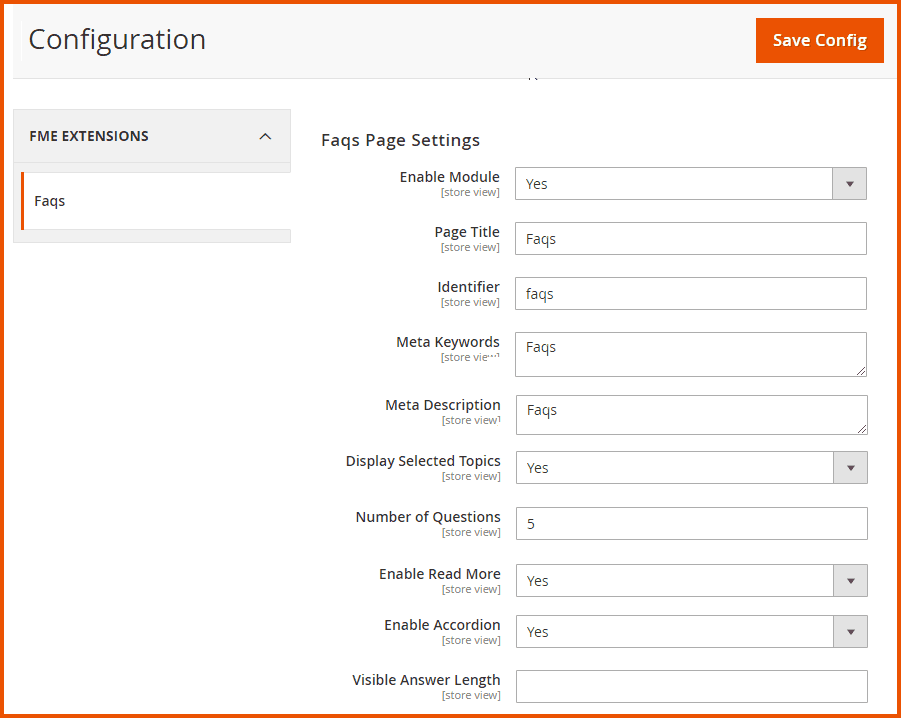
At the backend, go to FME EXTENSIONS > Configurations. Here you can find the extension configurations.
FAQs Page Settings
- Enable Module: Enable/Disable the Advanced FAQs module
- Page Title: Enter the title for the FAQs page
- Identifier: Enter the FAQs page identifier
- Meta Keywords: Enter meta keywords for the FAQs page
- Meta Description: Enter the meta description for the FAQs page
- Display Selected Topics: Option to display selected or all topics on the main page
- Number of Questions: Show the number of selected questions with each category
Note: Use 0 for none
- Enable Read More: Show/Hide the "Read More" link under a category
- Enable Accordion: Arrange topics and FAQs in an accordion style on the block
- Visible Answer Length: Set the visible answer length
Note: Maximum length of the answer visible on listing pages; use 0 for default length
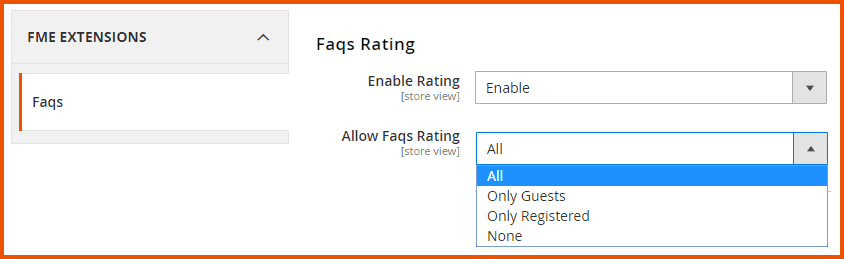
FAQs Ratings
- Enable Rating: Enable/Disable FAQs rating on the frontend
- Allow FAQs Rating: Options to allow FAQs rating for:
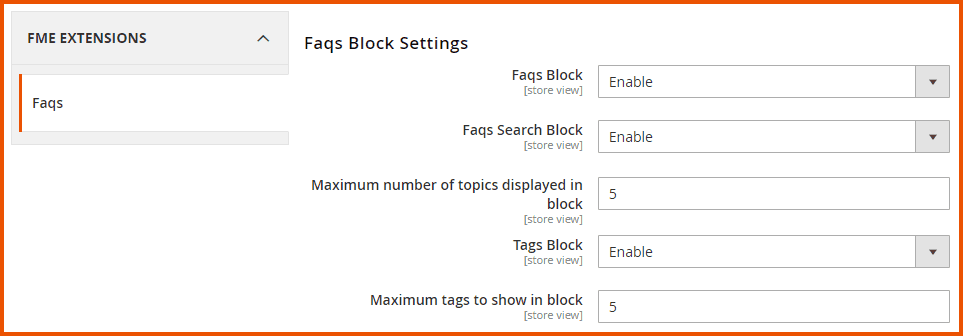
FAQs Block Settings
- FAQs Block: Enable/Disable FAQs block
- FAQs Search Block: Enable/Disable FAQs search block
- Maximum Number of Topics Displayed in Block: Specify the maximum number of topics to show in one block i.e. 1,2,3 etc.
- Tags Block: Enable/Disable tags block
- Maximum Tags to Show in Block: Specify the maximum number of tags to show in one block i.e. 1,2,3 etc.
Note: Set 'empty' or '0' to show all tags
SEO
- URL Suffix: Enter URL suffix

How to Add Topics?
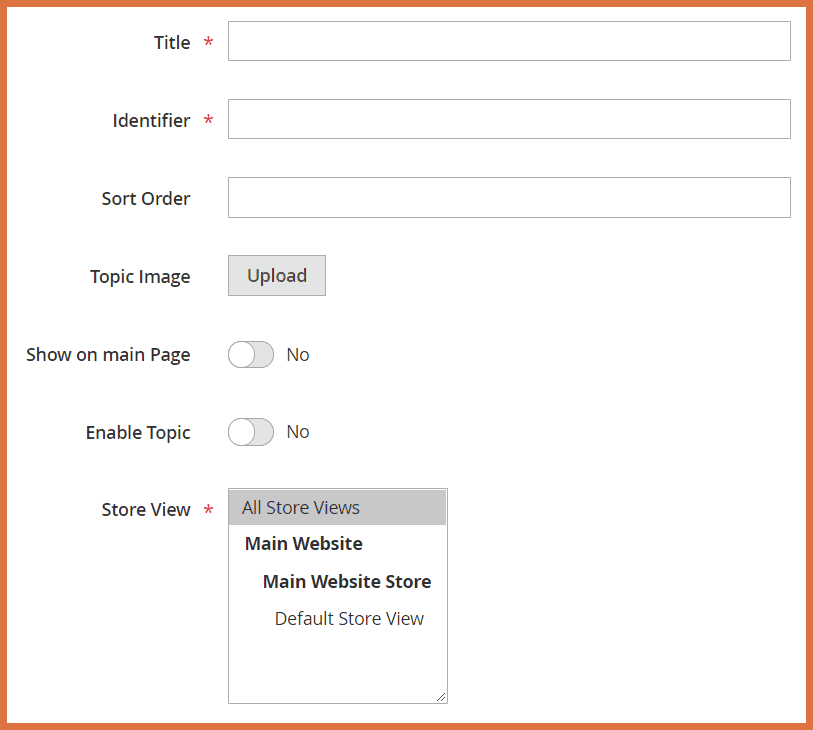
At the back end, go to FME EXTENSIONS > Manage Topics. Here you will find the list of all the topics in a grid. You can Edit/Delete any rule here, click on Add New button to continue.
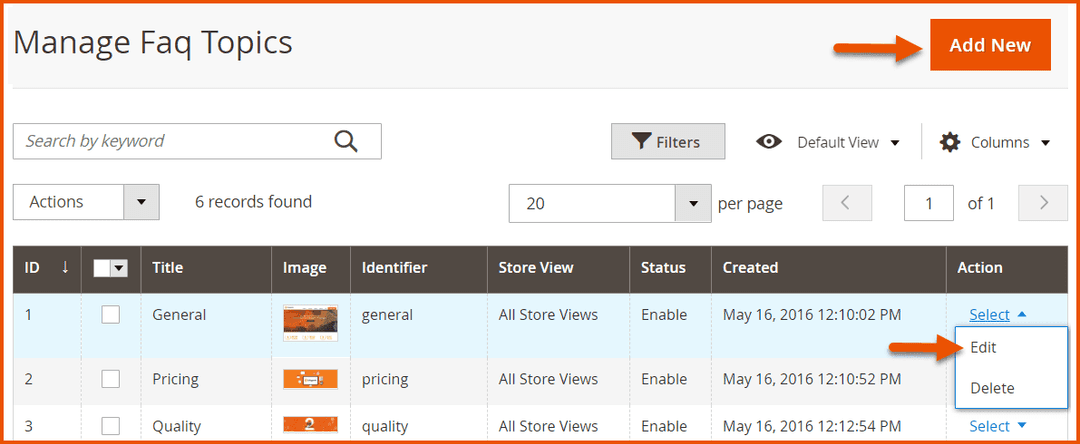
Here you have to provide the following information.
- Title: Provide the title for the topic.
- Identifier: Provide the URL identifier for the topic.
- Sort Order: Specify the sort order.
- Topic Image: Upload an image for the topic.
- Show on Main Page: Enable to display the topic on the main page.
- Enable Topic: Enable or disable the topic.
- Store View: Specify which store view the topic will be active on.
How to Add FAQs?
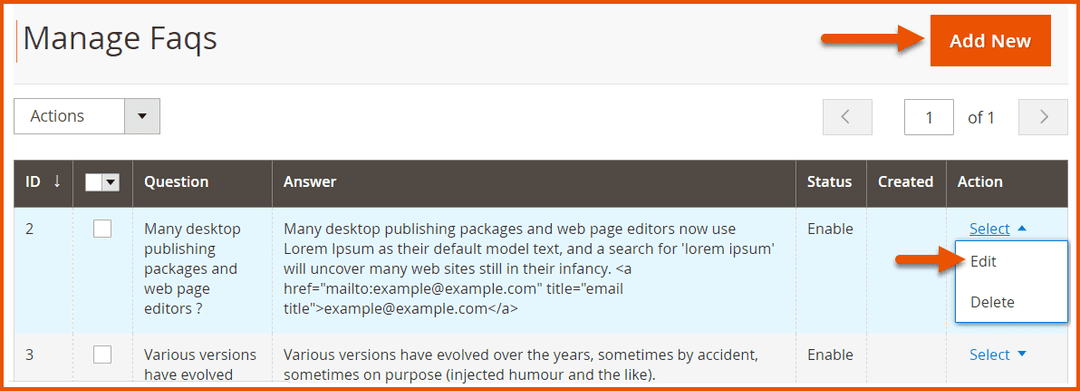
At the back end, go to FME EXTENSIONS > Manage FAQs. Here you will find the list of all the FAQs in a grid. You can Edit/Delete any rule here, click on Add New button to continue.
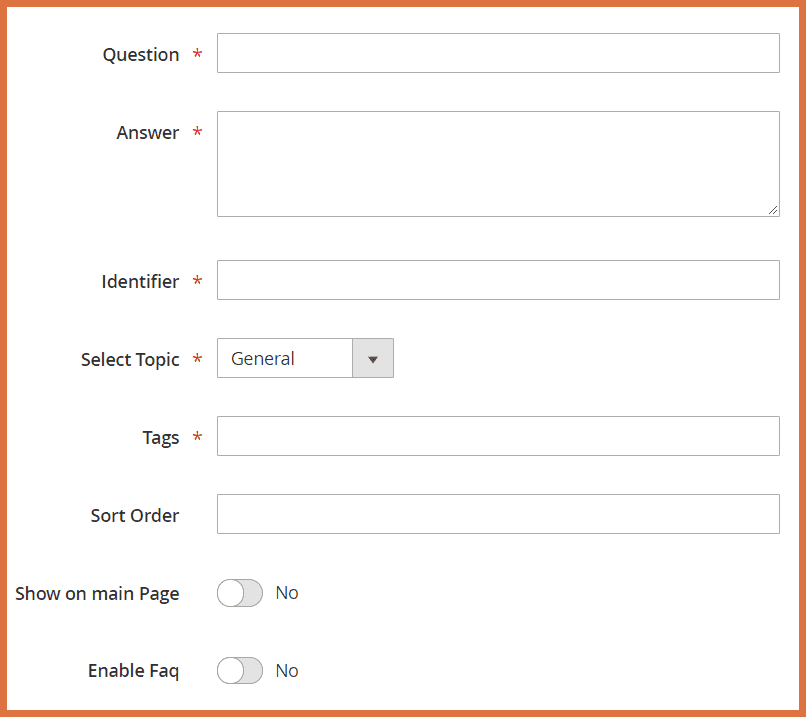
Provide the following information.
- Question: Write the FAQ
- Answer: Provide answer for the above FAQ
- Identifier: Provide URL identifier
- Select Topic: Choose topic for the FAQ
- Tags: Add tags to the FAQ for search purposes
- Sort Order: Specify the sort order
- Show on Main Page: Enable to show FAQ on the main page
- Enable FAQ: Enable/Disable the FAQ
How to Import or Export FAQs?
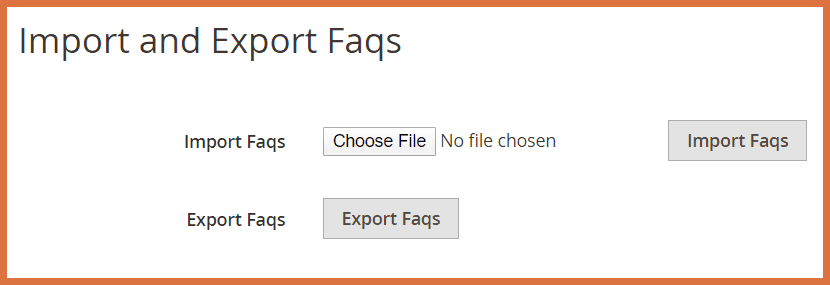
At the back end, go to FME EXTENSIONS > Manage Import/Export. Here you will find the options to import or export FAQs as shown below.
GraphQL APIs
Queries
1. Get All FAQs
query Faqs {
    faqs {
        accordion_opened
        create_date
        faq_answer
        faq_id
        faq_order
        faqs_topic_id
        identifier
        rating_count
        rating_num
        rating_stars
        show_on_main
        status
        tags
        title
        update_date
    }
}
2. Get FAQs by ID, Store ID, Tags, Title
query FaqsByFilter {
    faqsByFilter(filter: { faq_id: 1 }) {
        accordion_opened
        create_date
        faq_answer
        faq_id
        faq_order
        faqs_topic_id
        identifier
        rating_count
        rating_num
        rating_stars
        show_on_main
        status
        tags
        title
        update_date
    }
}
Mutations
1. Add New FAQ
mutation AddFaq {
    addFaq(
        input: {
            accordion_opened: 1
            faq_answer: "another test test answer"
            faq_order: 1
            faqs_topic_id: 3
            identifier: "atesttest"
            rating_count: 1
            rating_num: 4
            rating_stars: "5"
            show_on_main: 1
            status: 1
            tags: "test"
            title: "another test test"
        }
    ) {
        faq_id
        message
        success
    }
}
2. Update Existing FAQ
mutation UpdateFaq {
    updateFaq(
        faq_id: 4
        input: {
            accordion_opened: 1
            faq_answer: "test update via graph ql"
            faq_order: 0
            faqs_topic_id: 3
            identifier: "aaa"
            rating_count: 77
            rating_num: 5
            rating_stars: "5"
            show_on_main: 1
            status: 1
            tags: "agento"
            title: "test via graph ql"
        }
    ) {
        faq_id
        message
        success
    }
}
3. Delete FAQ
mutation DeleteFaq {
    deleteFaq(faq_id: 5) {
        message
        success
    }
}
