Magento 2 Subscription & Recurring Payments Extension - User Guide
After installing the extension, please make sure to upgrade the setup and deploy the static content. Then, log in to the Admin Panel and flush the Magento cache storage.
How to Configure
At the back end, go to FME EXTENSIONS > Configurations. Here you can find the following settings:
General Settings
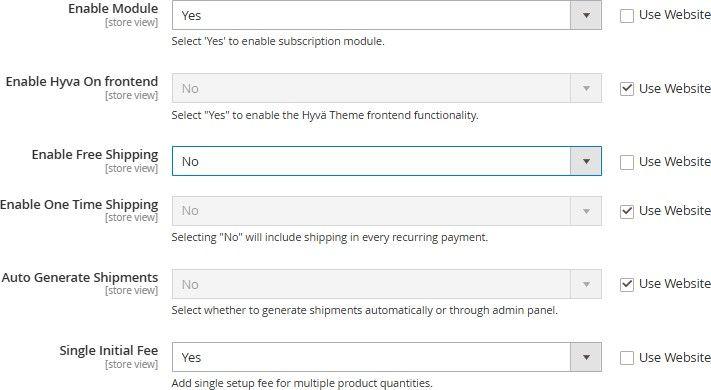
- Enable Module: Activates or deactivates the Subscription & Recurring Payments extension. Set this to Yes to enable all subscription-related features on your Magento 2 store.
- Enable Hyva on Frontend: Allows compatibility with the Hyvä theme. If you’re using the Hyvä frontend, enable this option to ensure all subscription components display and function correctly.
- Enable Free Shipping: Grants customers free shipping for subscription products. When set to No, additional options appear to configure one-time or recurring free shipping preferences.
- Enable One time Shipping: When free shipping is disabled, this option lets you apply free shipping only on the first subscription order instead of every recurring payment.
- Auto Generate Shipments: Automatically creates shipment records for subscription orders once payment is successfully processed, saving time and ensuring faster order fulfillment.
- Single Initial Fee: Enables charging a one-time setup or initial fee on the first order of a subscription. This can be used for registration, onboarding, or processing costs.
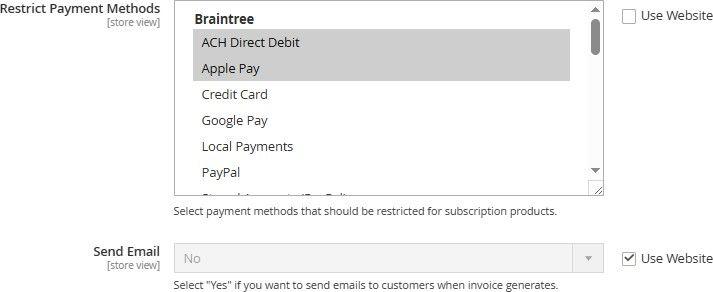
- Restrict Payment Methods: Allows the admin to disable specific payment methods for subscription purchases to ensure only supported gateways (like PayPal or Stripe) are used for recurring payments.
- Send Email: When enabled, the system automatically sends email notifications for subscription events such as renewals, cancellations, or failed payments to keep customers informed.
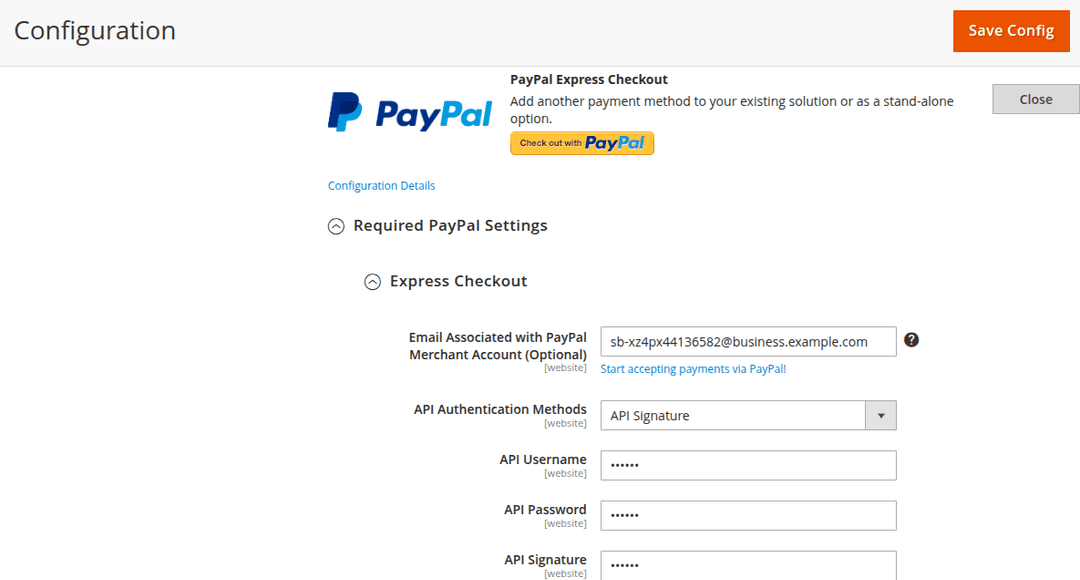
- Sandbox Mode: Enable this option to test subscription payments in PayPal’s sandbox environment.
You can configure PayPal and Stripe payments by navigating to Stores -> Settings -> Configuration -> Sales -> Payment Methods.
Add/Edit/Delete a Subscription
To view, edit or add a new subscription, navigate to FMEextensions -> Manage Subscriptions. The grid will display all the created subscriptions. Click the arrow beside the Select option in the Action column to edit or delete a subscription.
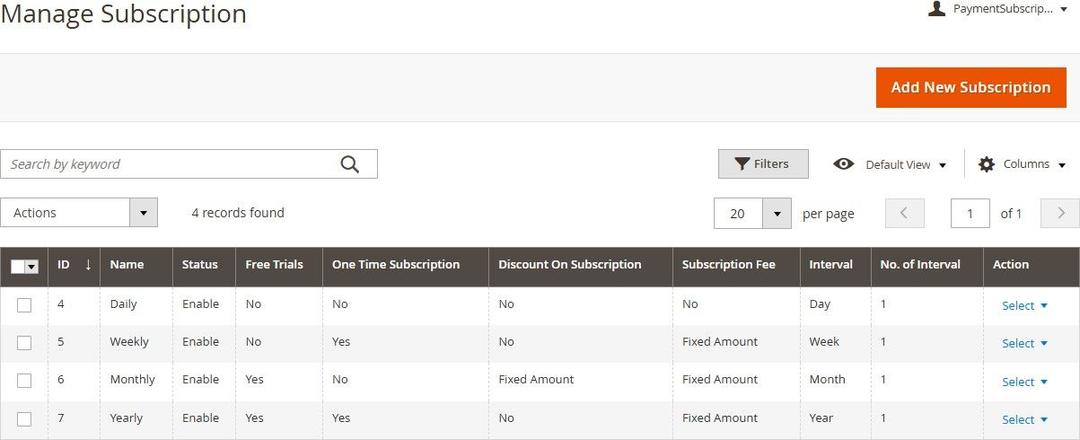
To add a new subscription, click the Add New Subscription button. Here, you can configure the following options for the subscription.
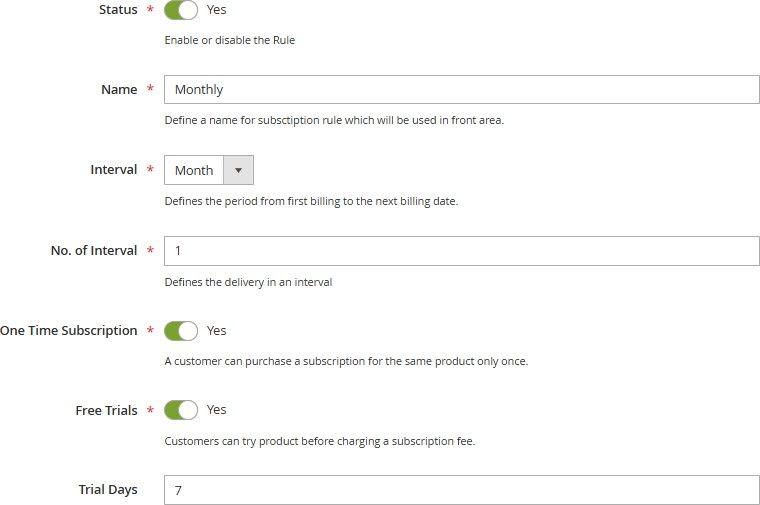
- Status: Enables or disables the subscription plan. When disabled, the plan will not be available for customers on the storefront.
- Name: Defines the internal name of the subscription plan. This name helps the admin identify the plan easily.
- Interval: Specifies the recurring billing frequency for the subscription. You can choose between Day, Week, Month, or Year based on your business model.
- No. of intervals: Sets how many intervals occur before each renewal. For example, selecting “2” with “Month” as the interval means billing occurs every two months.
- One Time Subscription: Allows the admin to enable a non-recurring subscription. When turned on, customers are billed only once for the product instead of recurring payments.
- Free Trial: Enables or disables the free trial feature. When activated, customers can enjoy the product or service for a specific number of days before billing begins.
- Trial Days: Specifies the number of days for the free trial period. After this period ends, the cycle starts automatically.
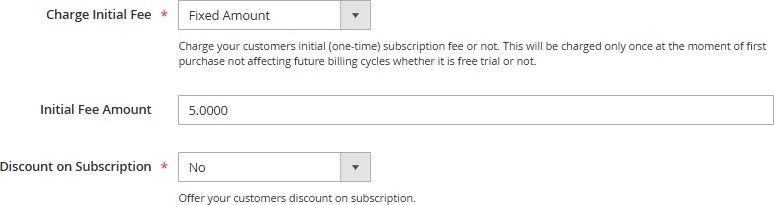
- Charge Initial Fee: Determines whether an additional initial fee should be applied to the first subscription order. You can select No, Fixed amount, or Percent of product price.
- Initial Fee Amount: When an initial fee is enabled, this field lets you specify the exact amount or percentage that will be charged as a one-time setup or registration fee.
- **Discount on Subscription: **Allows you to offer a discount on recurring subscription payments. Choose between No, Fixed amount, or Percent of product price to configure the discount type.
- Discount Amount: When a discount is enabled, enter the amount or percentage value that will be applied to each recurring payment.
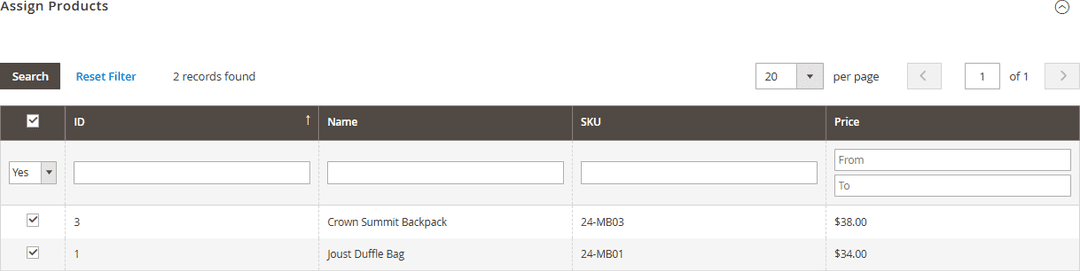
- Assign Products: Allows you to attach specific products with the subscription. Subscription will only be available on the selected products.
- Conditions: Allows you to set conditions to attach products based on attributes.
VIEW SUBSCRIPTIONS
To view the subscriptions you have got, navigate to FMEextensions -> Subscription Records. The grid displays all customer subscriptions with details including order #, subscription plan, payment method, product name, start & end date, etc.
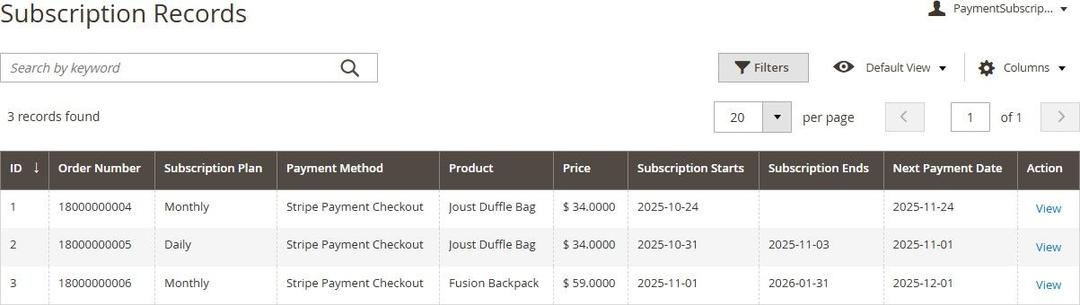
Click on the View button in the Action column against any subscription to view more details about the subscription.
Frontend
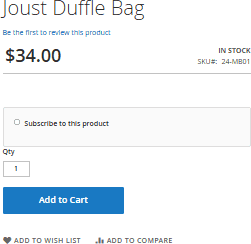
Navigate to any product on which the subscription is enabled. You will see the ‘Subscribe to this product’ option as shown below.
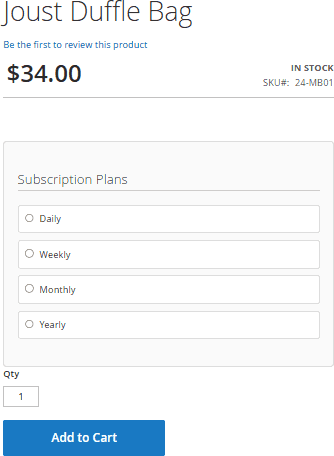
Clicking the subscribe option will display all the available subscription plans for this product.
You can click on any plan to see the subscription options.
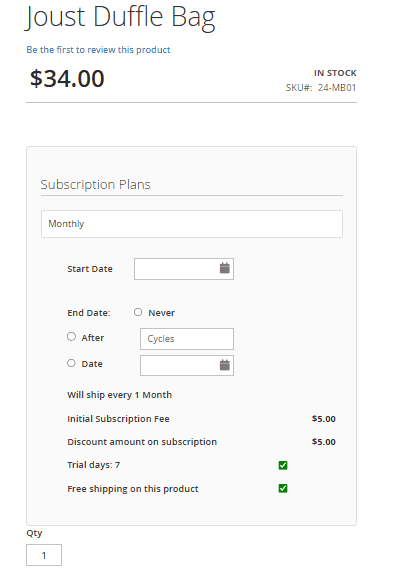
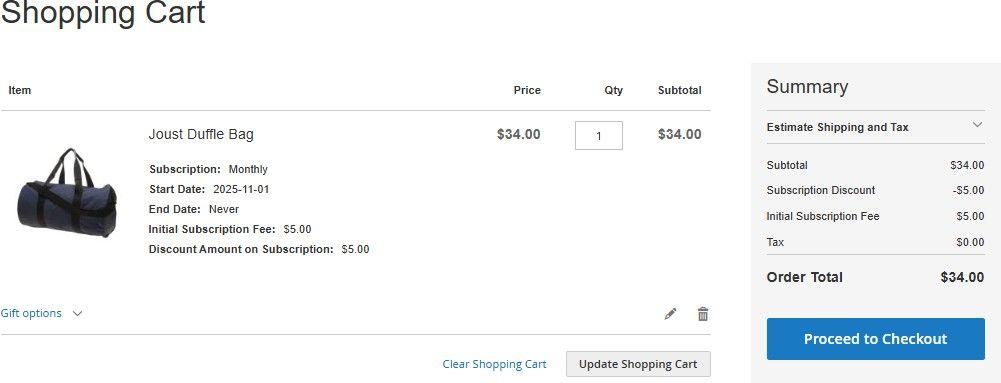
The initial fee and discount amount configured in the plan are displayed in the order details and applied to the total as shown below. Note that the initial fee is charged when the order is placed, while the product price is charged after the trial period. If there is no trial, the price is charged on the specified start date.
You can restrict other payment methods except PayPal and Stripe.
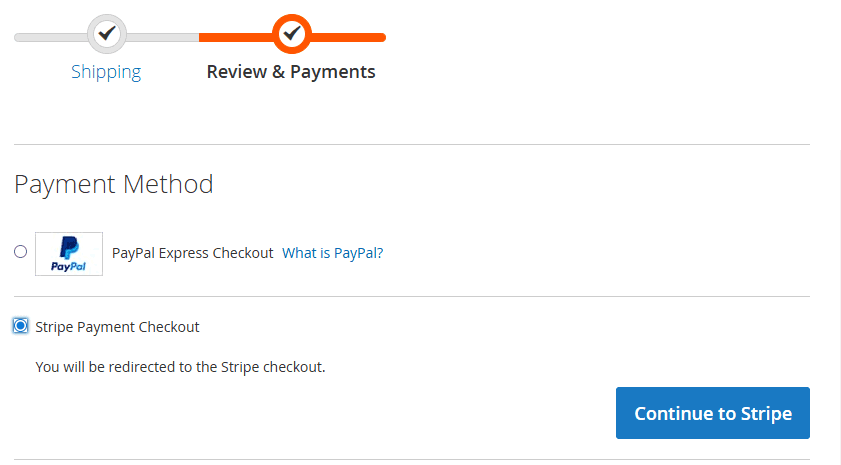
Clicking the Continue button will redirect you to the relevant payment platform, in this case, Stripe.
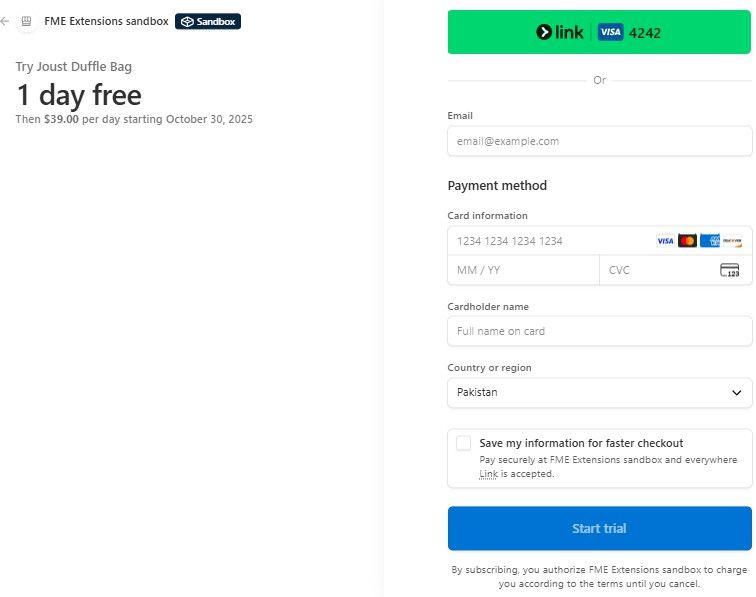
If the order is placed successfully, it will create a subscription.
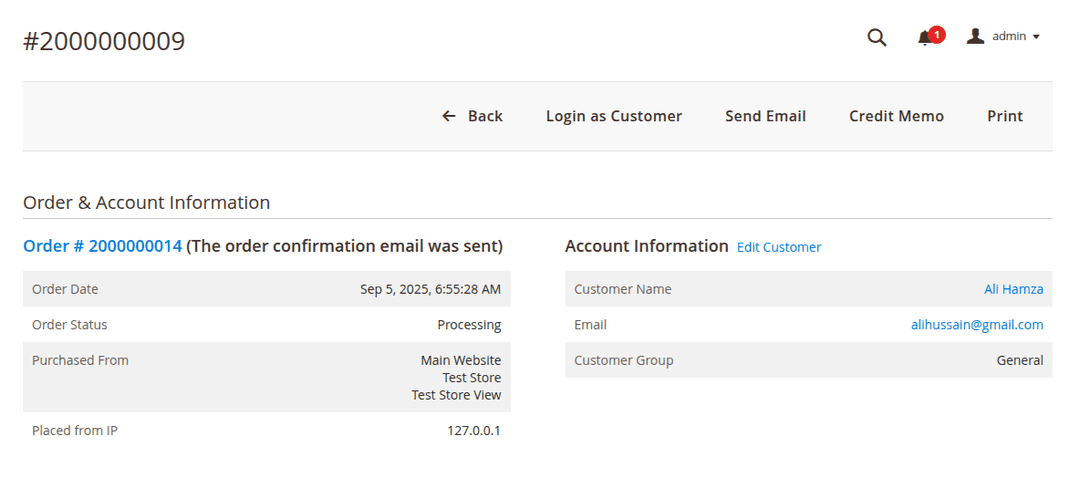
Navigate to Sales -> Orders and click on the View button against any subscription.
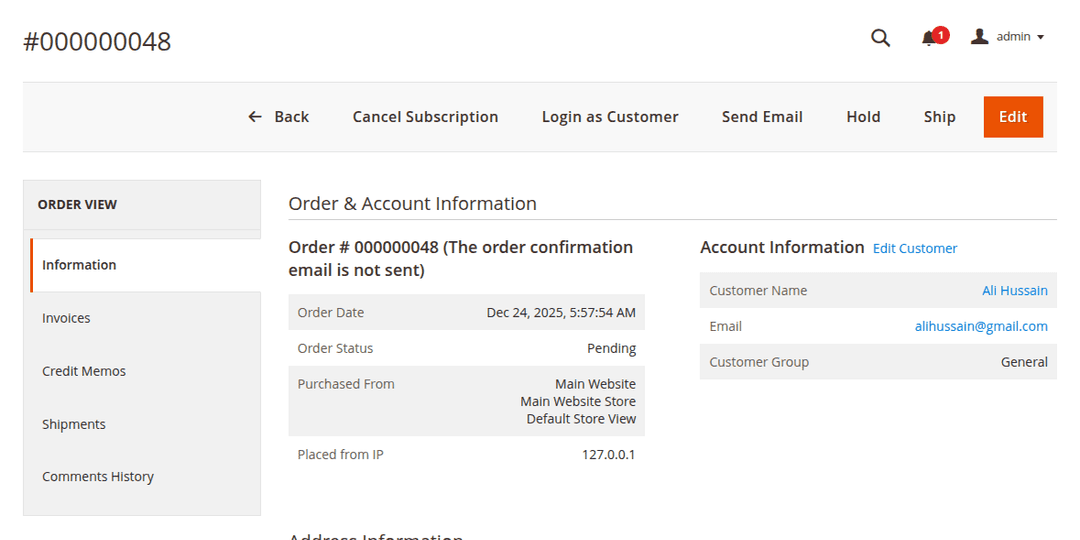
Please note that the Invoice option in the top menu is not visible, as it is in normal orders. This is because this is a subscription order, and an invoice is generated only when the payment is automatically deducted by the relevant payment provider. Once the payment is processed, the invoice will appear under the Invoices option in the left menu.
Customers can check all their subscriptions from the My Subscriptions section of their account.
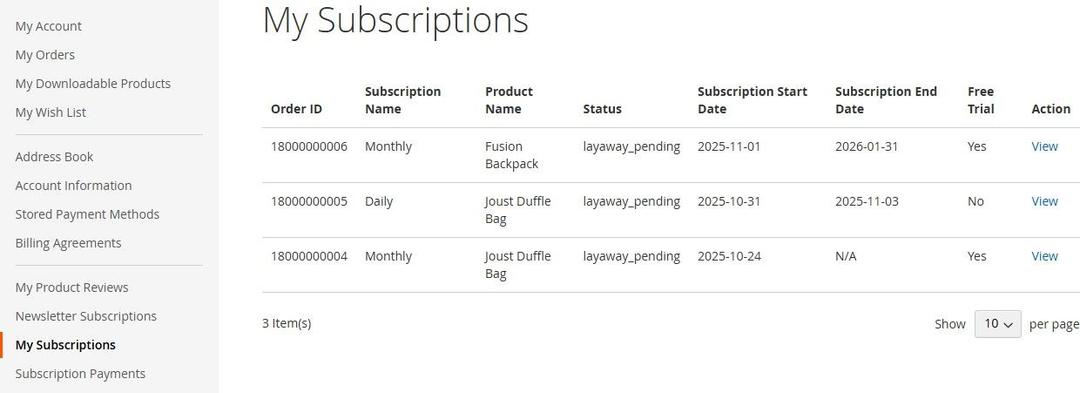
Note that subscriptions will only be created if the payment is made through PayPal or Stripe. If any other payment method is used—such as Cash on Delivery or Check/Money Order - subscriptions will not be created, neither in the customer’s “My Account” section nor in the admin panel.
Clicking the View link against any subscription will display all details about the subscription as shown below.
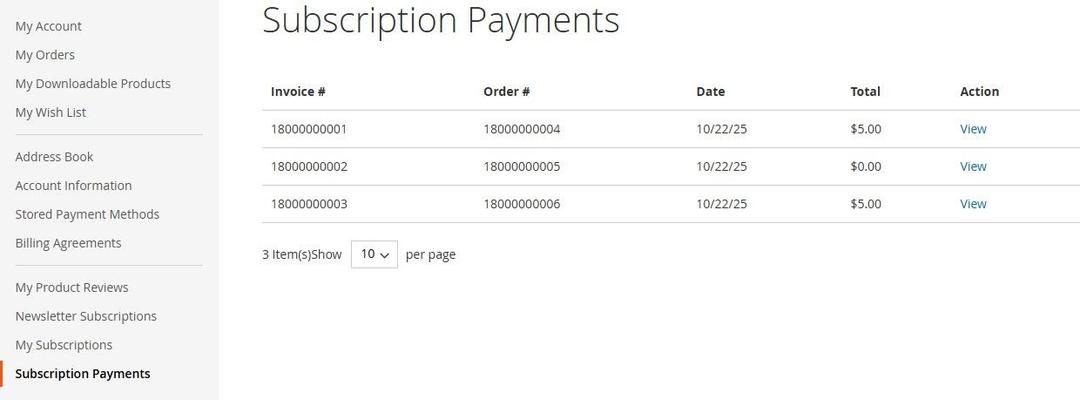
The Subscription Payments section allows customers to view all invoices generated and processed for their subscriptions.