Magento 2 Restrict Products by Customer Group Extension - User Guide
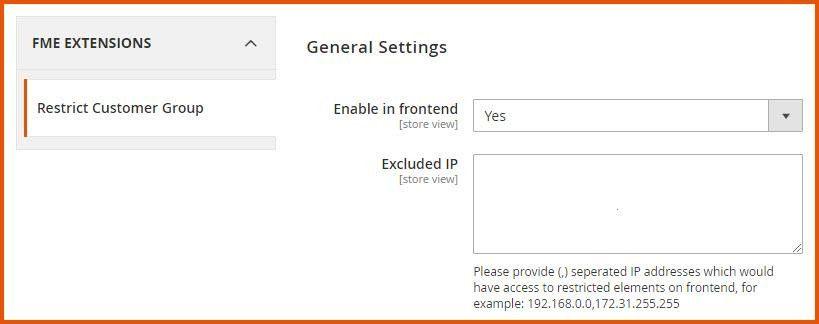
At the backend, go to FME EXTENSIONS > Configurations. Here you can find the extension configurations.
General Configurations
- Enable in Frontend: Enable/Disable Restrict Products by Customer Group module.
- Excluded IP: Enter the IP addresses that will have access to restricted elements on the frontend.
How to Manager Restriction Rules?
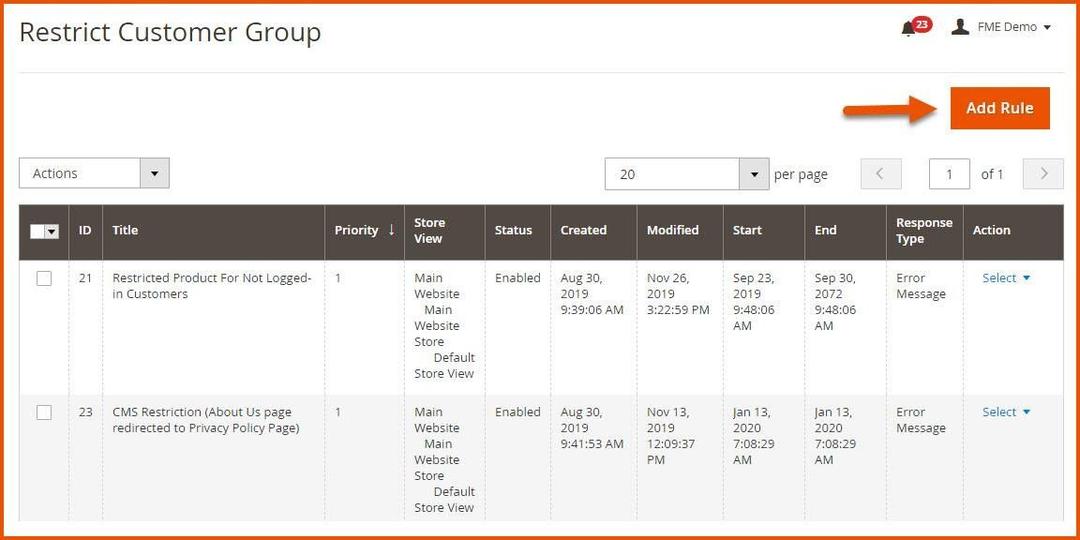
At the back end, go to FME EXTENSIONS > Manage Rules. Here you can find the grid with all your custom created fields. Click on Add Rule to continue.
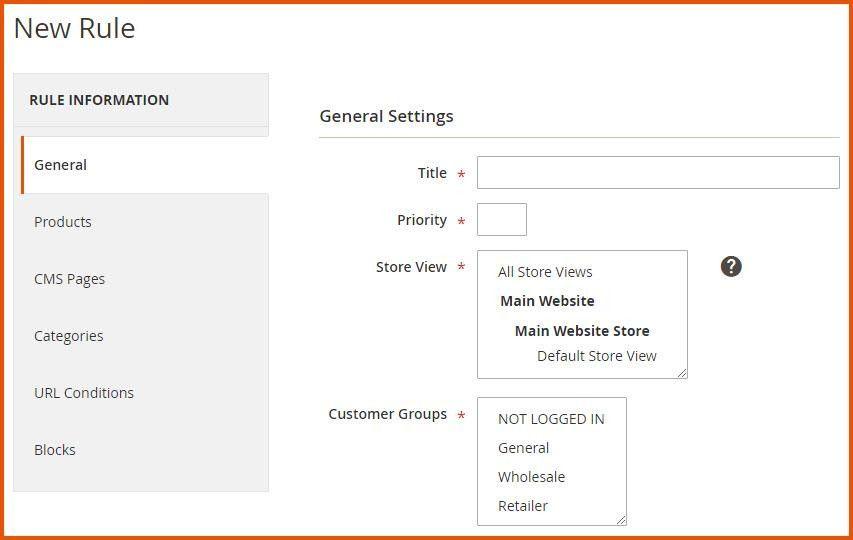
Now here you have to provide the following information.
RULE INFORMATION
- Title: Enter a suitable title for the new rule you want to create.
- Priority: Set priority for this rule with 1 as the highest and 0 as the lowest.
- Store View: Select one or more store views to apply this rule to.
- Customer Groups: Select one or more customer groups on which you want to apply this rule.
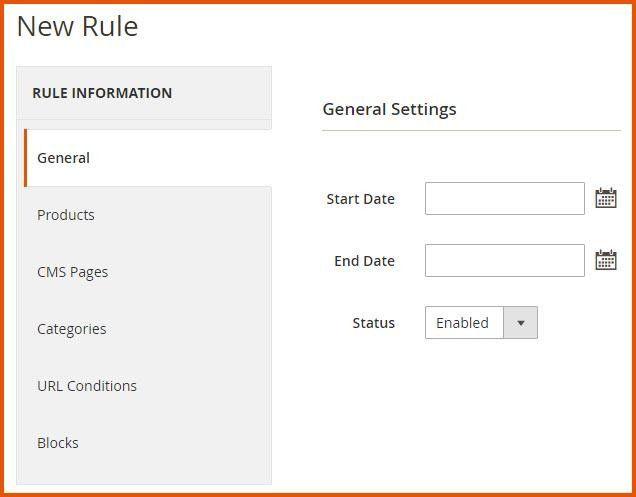
- Start Date: Enter the date when this rule applies.
- End Date: Enter the date when this rule ends.
- Status: Enable/Disable this rule.
-
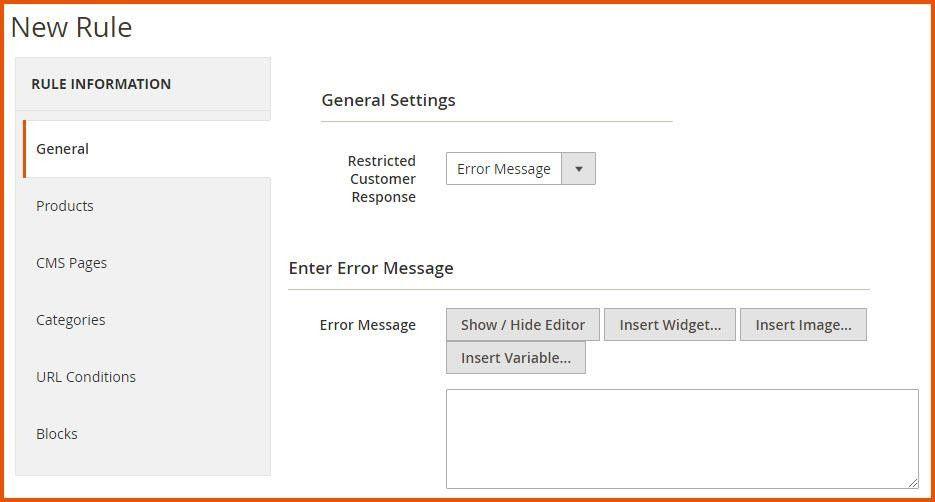
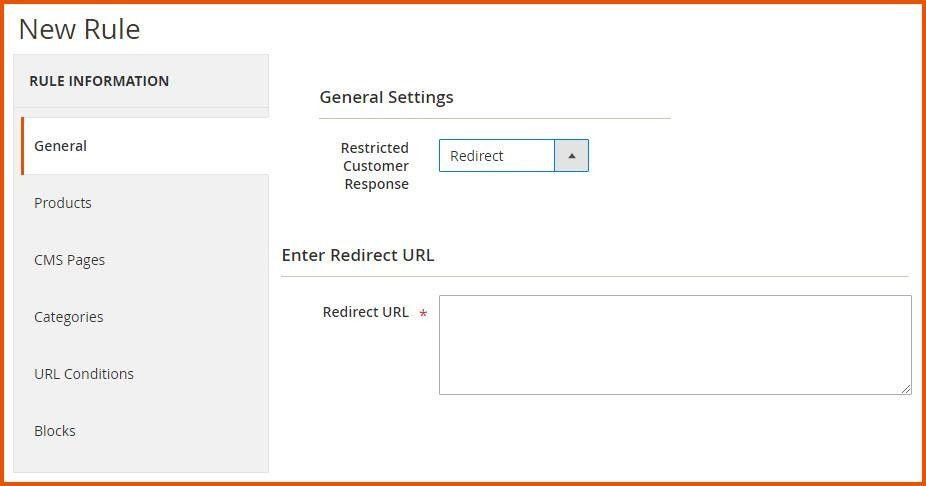
Restricted Customer Response: Here you have the following two options:
- Error Message: Enter a custom message for blocked/restricted customer groups in the Error Message box.
- Redirect: Redirect blocked customers/customer groups to another page by adding the redirect URL.
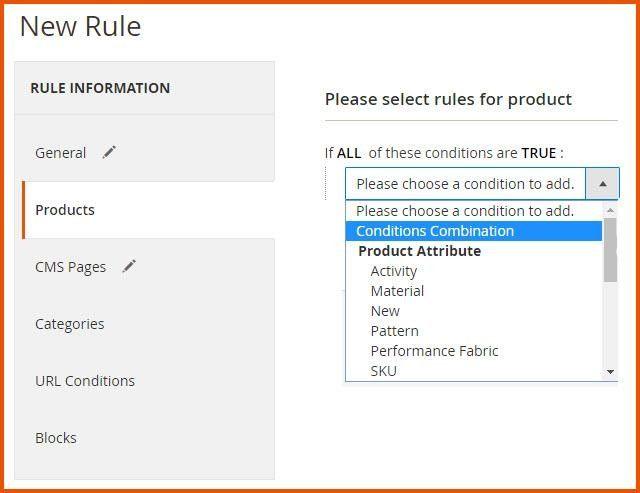
Products > Create Rules for Products
Select the rules which you want to apply to the products.
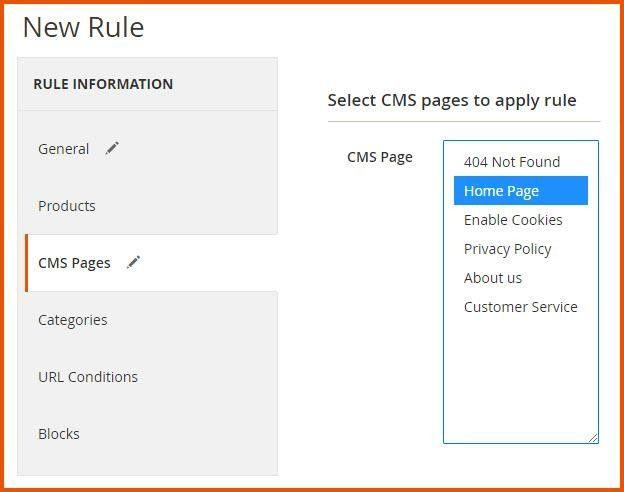
CMS Pages > Select Pages to Apply Rule
Select CMS pages on which you want to apply created rules.
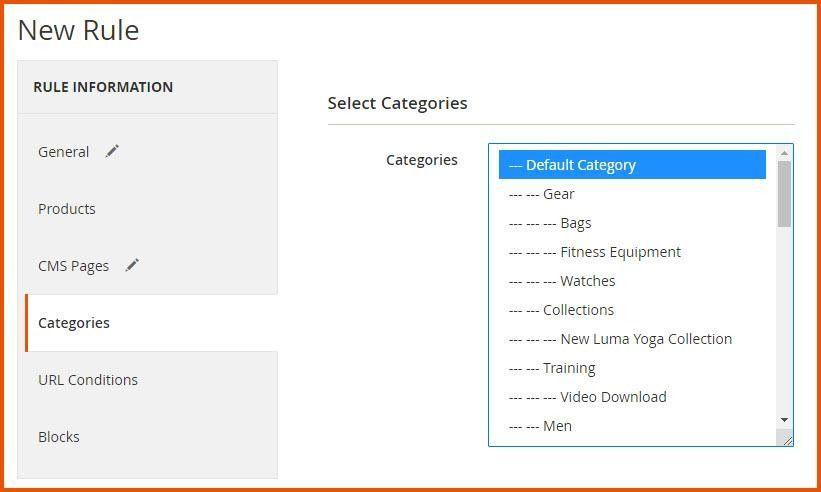
Categories > Select Categories
Select categories on which you want to apply created rules.
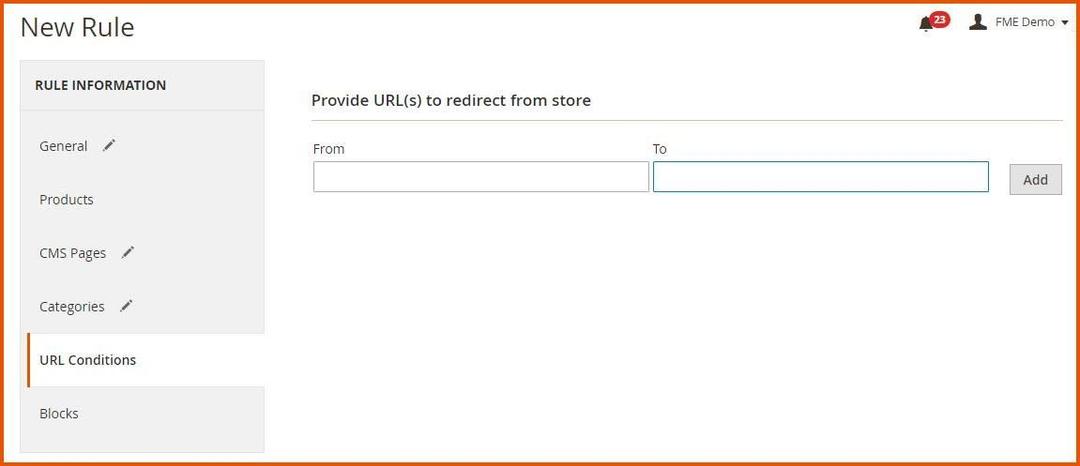
URL Conditions > Provide URL(s) for Redirection
You have the option to redirect pages to different destinations. If you want to redirect multiple pages to various sources, you can add their URLs and corresponding redirection links as shown in the image below.
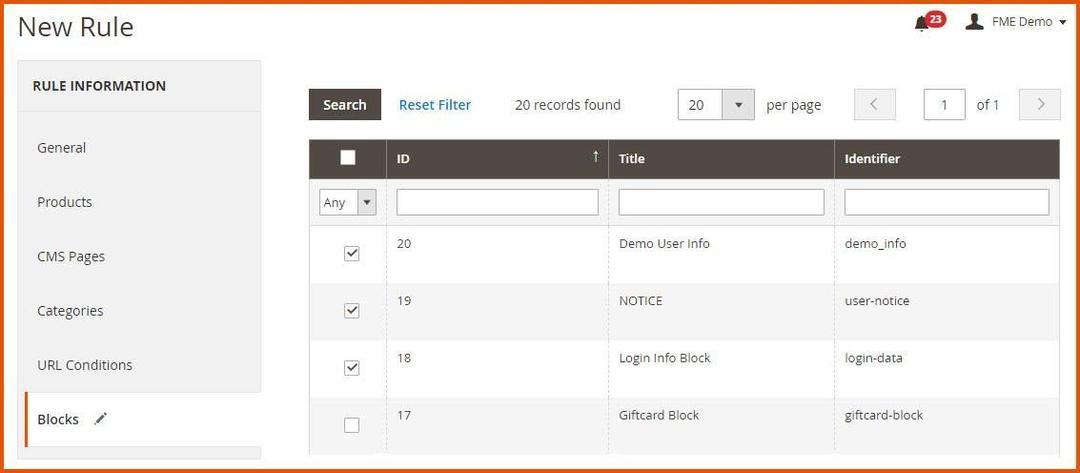
Blocks
You can hide blocks on any webpages or for specific customer groups.
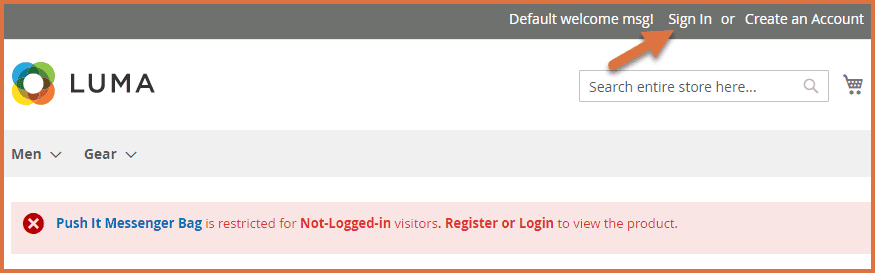
Restricted Product
When a user visits a restricted product on the store, they will either see an error message or be redirected, depending on back-end configurations. For example, in the screenshot below, a restricted product displays an error message.
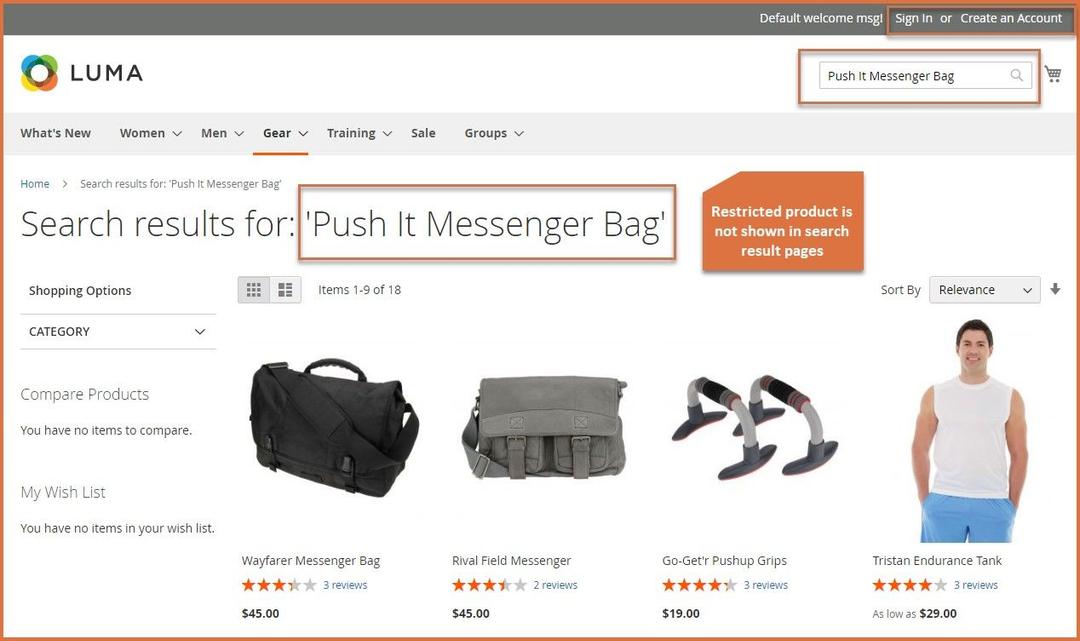
Product Restricted from Search Result Pages, Wishlist & Add to Compare Page
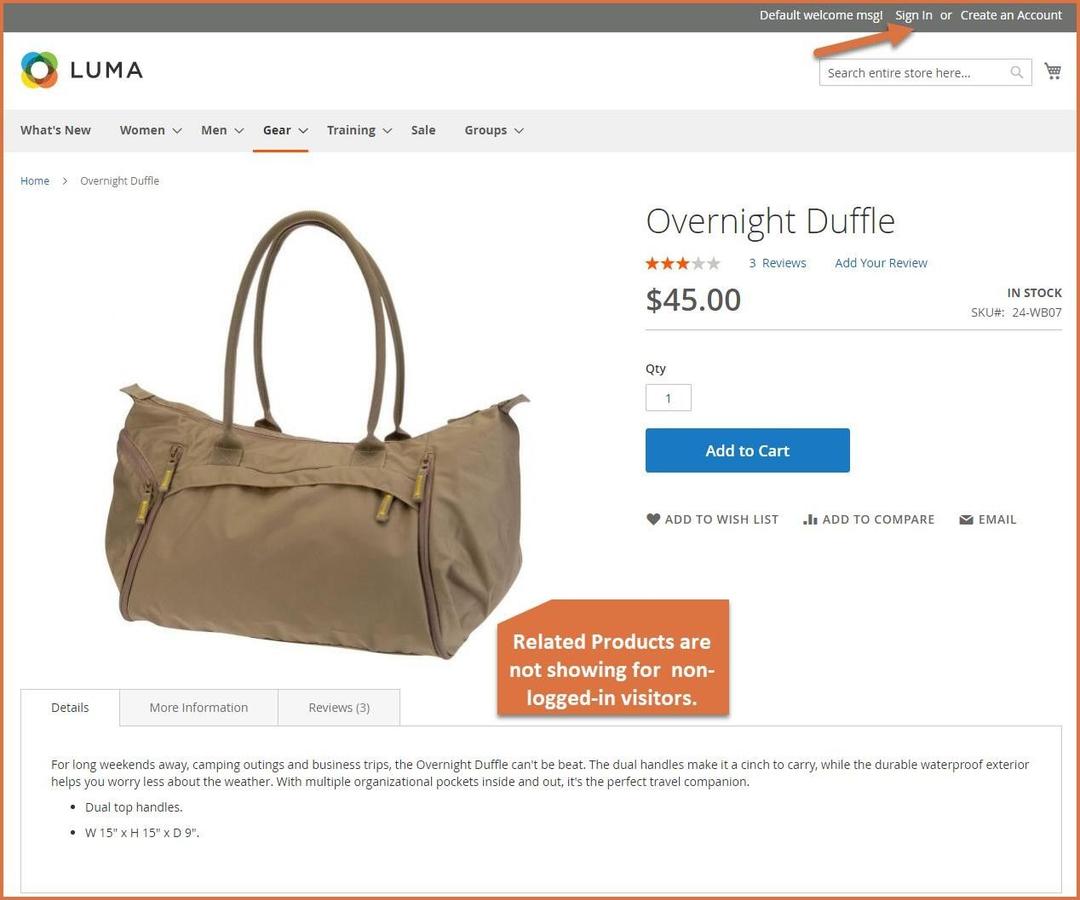
Product Restricted from Related, Upsell, Cross Sells
Restricted products will not appear in related, up-sell, or cross-sell sections based on back-end configurations.
GraphQL APIs
Queries
1. Get All Rules
query GetRules {
    getRules {
        blocks
        categories
        categories_ids
        cms_page_ids
        conditions_serialized
        creation_time
        customer_groups
        end_date
        error_msg
        hide_add_to_cart
        hide_price
        id
        is_active
        is_restrict_rule
        priority
        redirect_url
        restricted_customer_response_type
        start_date
        status
        stores
        title
        update_time
        url_serialized
    }
}
2. Get Rue by ID
query {
  getRule(rule_id: 3) {
    rule_id
    title
    is_active
    customer_groups
  }
}
3. Get Rule by Customer Group ID
query {
  getRule(customer_group: 3) {
    rule_id
    title
    categories
    customer_groups
  }
}
4. Get Rule by Category ID
query {
  getRule(category_id: 7) {
    rule_id
    title
    stores
  }
}
Mutations
1. Add New Rule
mutation {
  addRule(
    input: {
      title: "Restrict Rule Example"
      priority: 1
      is_active: true
      start_date: "2025-09-16"
      end_date: "2025-09-30"
      redirect_url: "/restricted"
      is_restrict_rule: true
      hide_price: true
      hide_add_to_cart: false
      categories: [4, 7]
      stores: [1]
      customer_groups: [2, 3]
      blocks: [6, 9]
    }
  ) {
    rule_id
    title
    is_active
    customer_groups
    stores
    categories
    blocks
  }
}
2. Delete Rule
mutation DeleteRule {
    deleteRule(rule_id: 6) {
        message
        success
    }
}
3. Update or Modify Rule
mutation UpdateRule {
    updateRule(rule_id: 3, input: { title: "Update by graphQl" }) {
        blocks
        categories
        categories_ids
        cms_page_ids
        conditions_serialized
        creation_time
        customer_groups
        end_date
        error_msg
        hide_add_to_cart
        hide_price
        is_active
        is_restrict_rule
        priority
        redirect_url
        restricted_customer_response_type
        rule_id
        start_date
        stores
        title
        update_time
        url_serialized
    }
}
