Magento 2 Product Feed Extension - User Guide
General Configurations
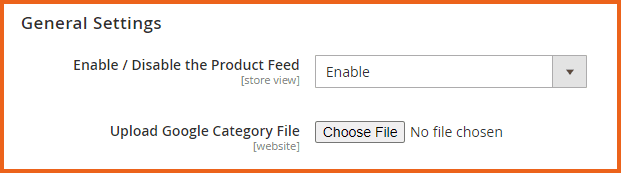
At the backend, go to FME EXTENSIONS > Configurations. Here you can find the extension configurations.
- Enable/Disable the Product Feed: Options to Enable or Disable the product feed module
- Upload Google Category File: Upload a Google category file
(Note: Upload only CSV file type)
How to Create Product Feed?
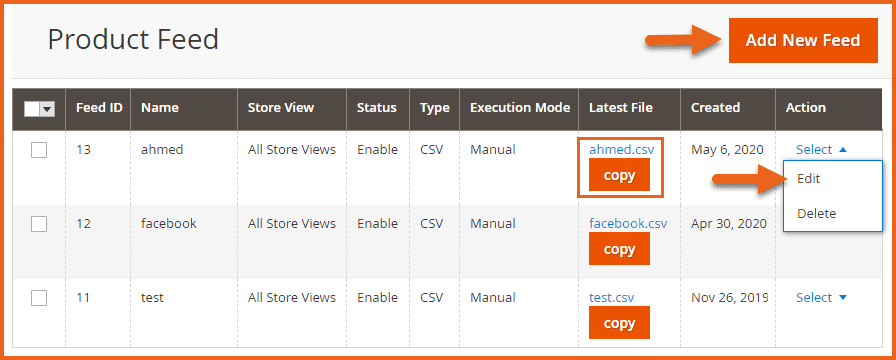
At the backend, go to FME EXTENSIONS > Manage Feeds. Here you will find all the product feeds in a grid. You can Edit any feed, download any previously created feed by clicking on the Copy button or click on the Add New Feed button to continue.
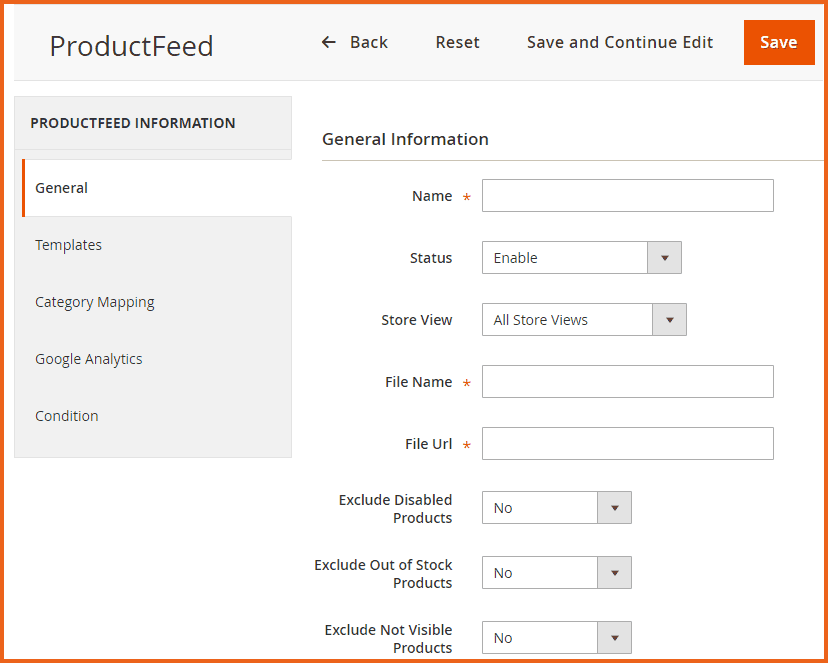
Here you will have to provide the following information:
General Information
- Name: Enter a name for the product feed
- Status: Options to Enable or Disable the product feed
- Store View: Choose the store views on which you want to enable the product feed
- File Name: Enter a name for the file
- File URL: Provide URL of the file e.g. "/fme_productfeed/" or "/" for the base path (Note: path must be writeable)
- Exclude Disabled Products: Choose ‘Yes’ or ‘No’ to Include or Exclude the disabled products from the product feed
- Exclude Out of Stock Products: Choose ‘Yes’ or ‘No’ to Include or Exclude the Out of Stock products from the product feed
- Exclude Not Visible Products: Choose ‘Yes’ or ‘No’ to Include or Exclude the ‘Not Visible Products’ from the product feed
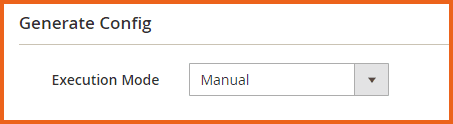
- Execution Mode: Select the execution mode i.e. Manual
Templates
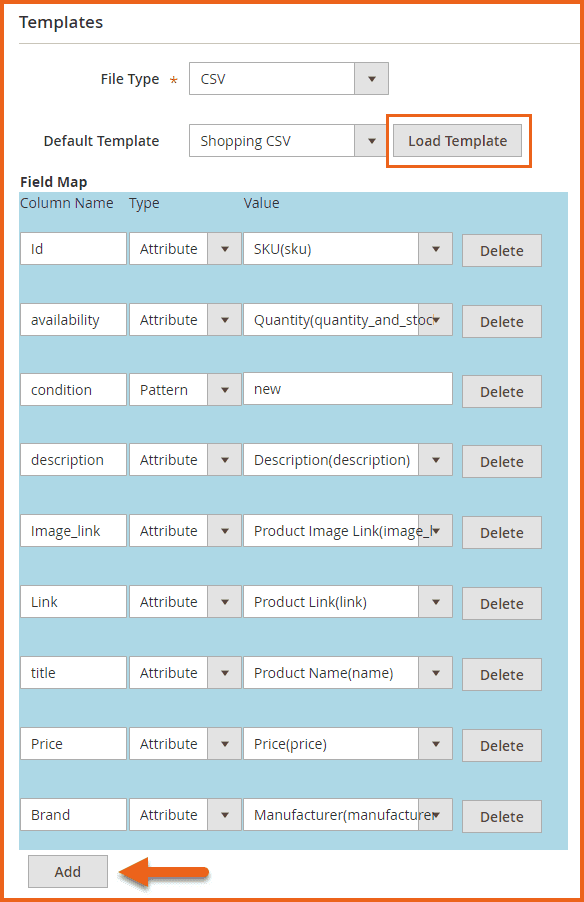
- File Type: Choose the type of template file, if you choose ‘CSV’ then following fields will appear at your screen:
- CSV
- Default Template: Our extension is equipped with custom-made CSV templates to help you create product feed according to the shopping platform you aim to submit for. You can create your own custom templates. Available default CSV templates are:
- Facebook CSV
- eBay CSV
- Bing CSV
- Shopping CSV
(Note: You can amend the values of the product attributes for each feed to decide which products to show on a shopping platform. Customize the fields map accordingly)
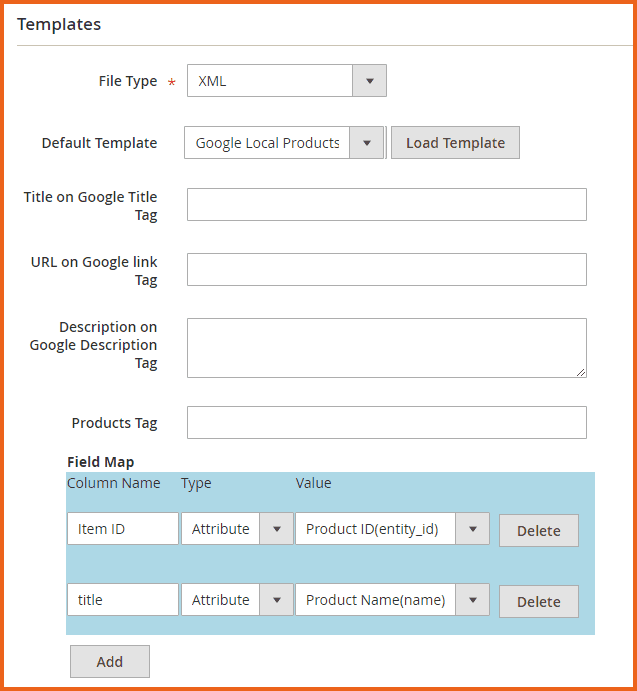
- File Type: Choose the type of template file, if you choose ‘XML’ then following fields will appear at your screen:
- XML
- Default Template: Our extension is also equipped with custom-made XML templates to help you create product feed according to the shopping platform you aim to submit for. You can create your own custom templates. Available default XML templates are:
- Google Shopping XML
- Google Remarketing-DRM
- Google-DSA
- Google Local Products Feed
- Google Local Products Inventory Feed
(Note: You can amend the values of the product attributes for each feed to decide which products to show on a shopping platform. Customize the fields map accordingly)
- Title on Google Title Tag: Enter a title for the Google title tag
- URL on Google Link Tag: Provide a URL for the Google link tag
- Description on Google Description Tag: Enter a description for the Google description tag
- Products Tag: Enter the product tag. Special Characters and White Spaces are considered to be invalid for product tags.
Category Mapping
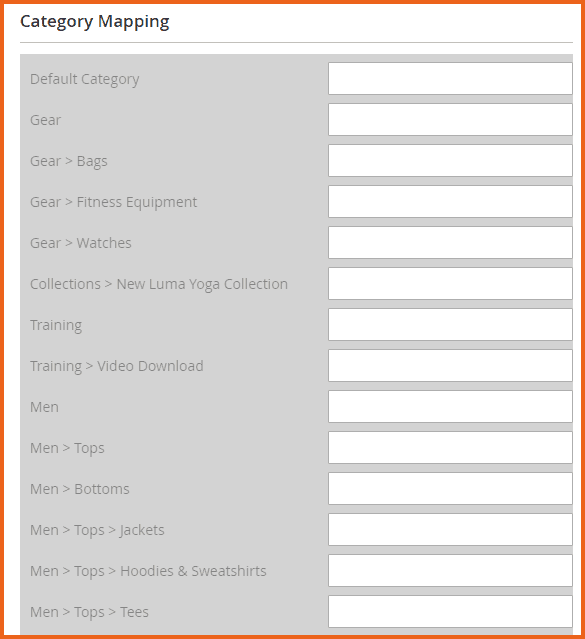
Kindly check Google Taxonomy and rename your categories to match the corresponding Google categories according to the requirements.
(Note: You should define the full path of the category exactly as it is in the taxonomy. For instance, if you are trying to associate your ‘Shorts’ category with Google, you might rename it to "Apparel & Accessories > Clothing > Shorts")
Google Analytics
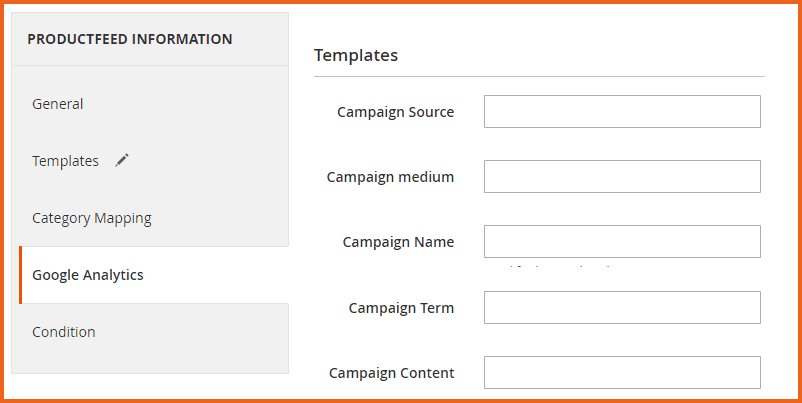
Configure Google Analytics to monitor your web store traffic coming through the shopping platforms.
- Campaign Source: Use utm_source to identify a search engine, newsletter name, or other sources e.g. Google
- Campaign Medium: Use utm_medium to identify a medium such as an email or cost- per-click e.g. CPC
- Campaign Name: It is used for keyword analysis. Use utm_campaign to identify a specific product promotion or strategic campaign e.g. spring_sale
- Campaign Term: It is used for paid search. Use utm_term to note the keywords for this ad e.g. running+shoes
- Campaign Content: It is used for A/B testing and content-targeted ads. Use utm_content to differentiate ads or links that point to the same URL e.g. logo link or text link
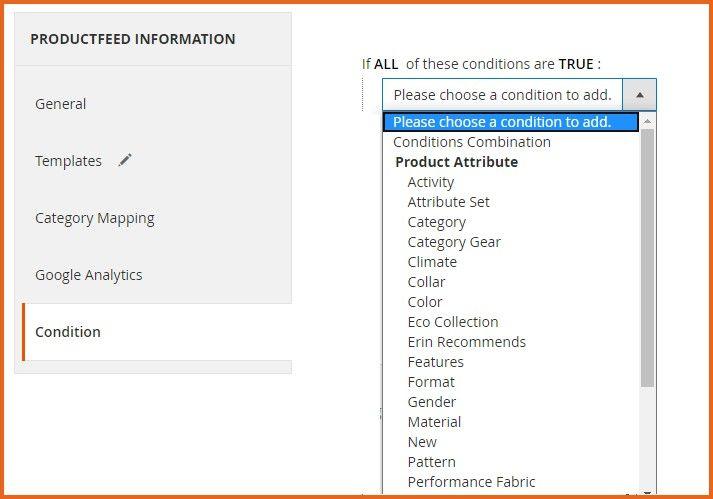
Conditions
Apply the rule only if the following conditions are met (leave blank for all products).
GraphQL APIs
1. Update Product Feed Rule
mutation {
  updateProductFeed(input: {
    feed_id: 2
    name: "Updated Product Feed"
    status: "1"
    store_id: ["1", "2"]
    file_name: "updated-products.xml"
    url_key: "updated-feed"
    disable_product: "0"
    out_of_stock: "1"
    visible_product: "1"
    category_mapping: ["15", "25"]
    execution_mode: "1"
    file_type: "2"
    default_template: "5"
    xml_title: "Updated Product Feed"
    xml_link: "https://updated-store.com"
    xml_description: "Updated feed description"
    product_tag: "updated-products"
    campaign_source: "bing"
    campaign_medium: "cpc"
    campaign_name: "updated-campaign"
    campaign_term: "products"
    campaign_content: "updated-content"
    skus: ["UPDATED001", "UPDATED002"]
    directory_path: "/var/updated/"
  }) {
    feed_id
    name
    status
    store_id
    file_name
    url_key
    skus
    genrated_on
    updated_at
    message
    success
  }
}
2. Insert Product Feed Rule Data
mutation {
  insertProductFeed(input: {
    name: "Test Product Feed"
    status: "1"
    store_id: ["1", "2"]
    file_name: "products.xml"
    url_key: "test-feed"
    disable_product: "0"
    out_of_stock: "0"
    visible_product: "1"
    category_mapping: ["5", "10"]
    execution_mode: "0"
    file_type: "1"
    default_template: "4"
    xml_title: "Product Feed Title"
    xml_link: "https://store.com"
    xml_description: "Product feed description"
    product_tag: "products"
    campaign_source: "google"
    campaign_medium: "organic"
    campaign_name: "product-campaign"
    campaign_term: "products"
    campaign_content: "content"
    skus: ["SKU001", "SKU002", "SKU003"]
    directory_path: "/var/export/"
  }) {
    feed_id
    name
    status
    store_id
    file_name
    url_key
    skus
    genrated_on
    updated_at
    message
    success
  }
}
3. Get Product Feed Rule Data
{
  productFeedGraphQl(feed_id: 2) {
    feed_id
    name
    status
    store_id
    file_name
    url_key
    disable_product
    out_of_stock
    visible_product
    category_mapping
    execution_mode
    file_type
    default_template
    xml_title
    xml_link
    xml_description
    product_tag
    campaign_source
    campaign_medium
    campaign_name
    campaign_term
    campaign_content
    conditions_serialized
    conditions_parsed {
      type
      attribute
      operator
      value
      aggregator
      conditions {
        type
        attribute
        operator
        value
        is_value_processed
      }
    }
    skus
    directory_path
    genrated_on
    updated_at
  }
}
4. Delete Product Feed Rule
query {
  deleteProductFeed(feed_id: 2) {
    feed_id
    name
    status
    store_id
    file_name
    url_key
    genrated_on
    updated_at
    message
    success
    deleted_at
  }
}
