Magento 2 Image Zoom Extension - User Guide
At the backend, go to FME EXTENSIONS > Configurations. Here you can find the extension configurations.
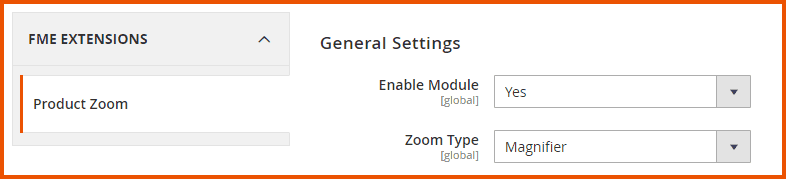
General Configurations
- Enable Module: Option to Enable/Disable the product image zoom module
- Zoom Type: Choose any image zoom option:
- Magnifier
- Light Box
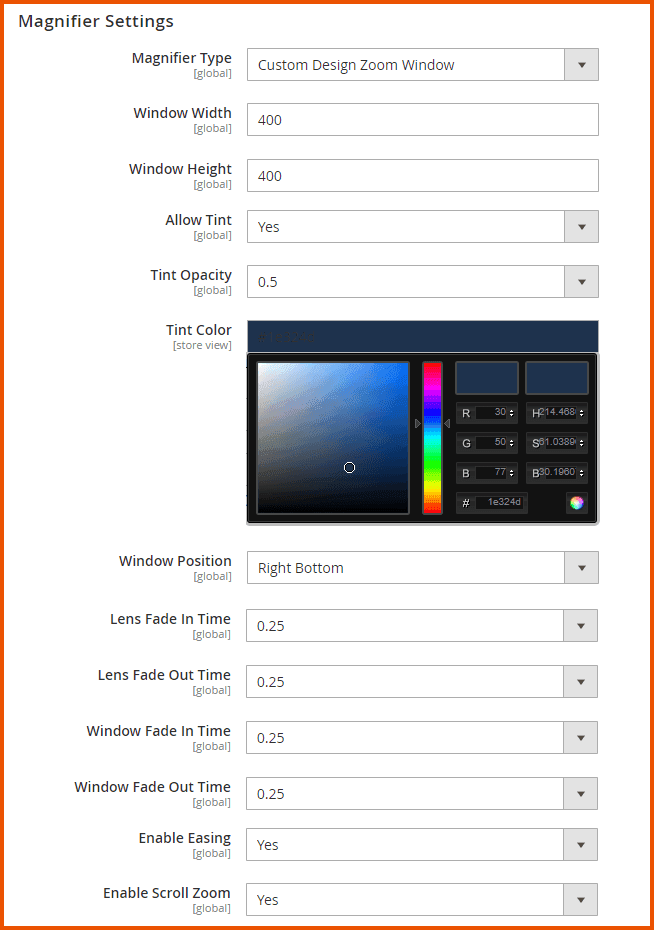
Magnifier Settings
- Magnifier Type: Select the type of magnifier from the list:
- Basic Zoom (It can change the window of basic zoom only)
- Tints
- Inner Zoom
- Lens Zoom
- Fade In / Fade Out
- Easing
- Mouse wheel Zoom
- Window Position
- Custom Design Zoom Window
For the user guide, we have selected the ‘Custom Design Zoom Window’ option. If you select any other type of magnifier, some other fields will appear at your screen according to the selected type.
- Window Width: Enter the width of the window. Width ranges from 100 to 550.
- Window Height: Enter the height of the window. Height also ranges from 100 to 550.
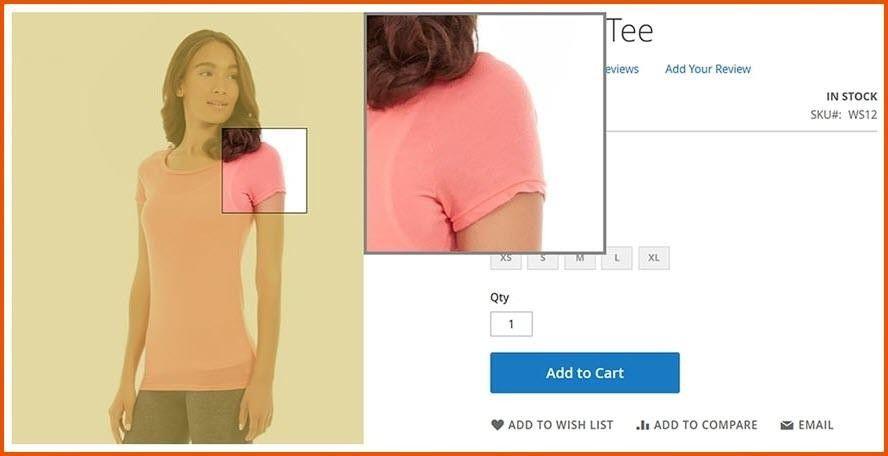
- Allow Tint: Option to Enable/Disable the tint option
- Tint Opacity: Select the opacity of the tint:
- Tint Color: Select the tint color or leave empty for default color (#1e324d)
- Window Position: Select the position of the window:
- Lens Fade In Time: Select the fade-in time of lens:
- Lens Fade Out Time: Select the fade-out time of lens:
- Enable Easing: Option to Enable/Disable the easing effect
- Enable Scroll Zoom: Option to Enable/Disable the scroll zoom
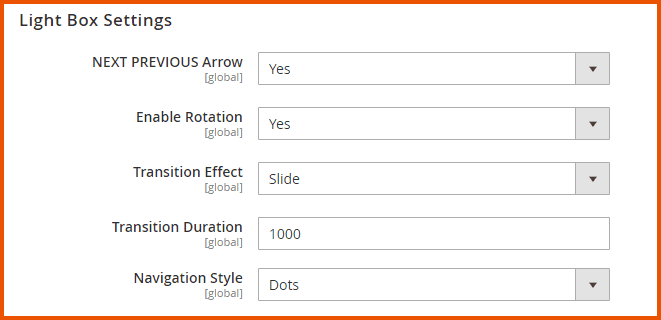
Light Box Settings
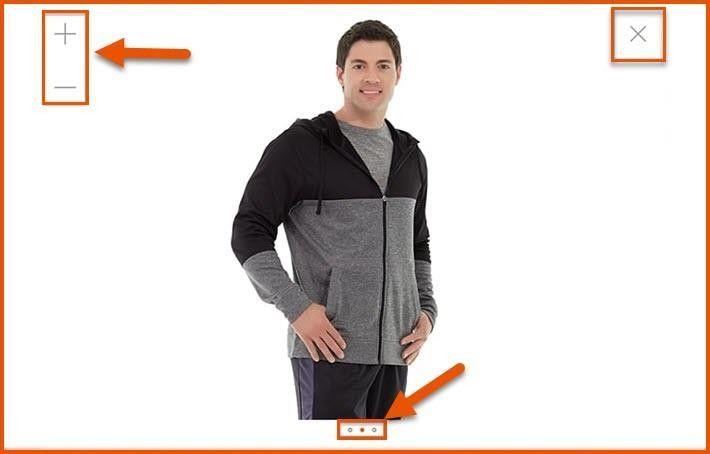
- Next Previous Arrow: Option to Enable/Disable the Next & Previous arrows on the light box
- Enable Rotation: Option to Enable/Disable the rotation of the images on the light box
- Transition Effect: Choose the transition effect of the images on the light box:
- Cross Fade
- Dissolve
- Slide
- Transition Duration: Option to add the transition duration of the images on the light box. Time is in milliseconds.
- Navigation Style: Option to Enable/Disable or Select the navigation style:
- Thumbs
- Dots
- Disable
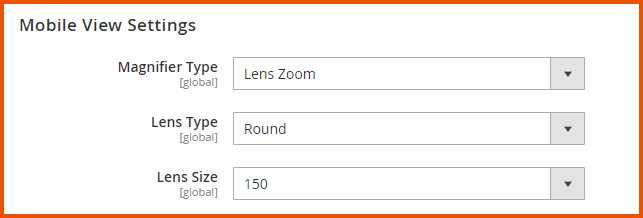
Mobile View Settings
-
Magnifier Type: Choose the type of magnifier:
- Inner Zoom
- Lens Zoom
If you select the ‘Lens Zoom’ option, then following fields will appear at your screen:
- Lens Type: Choose the type of lens:
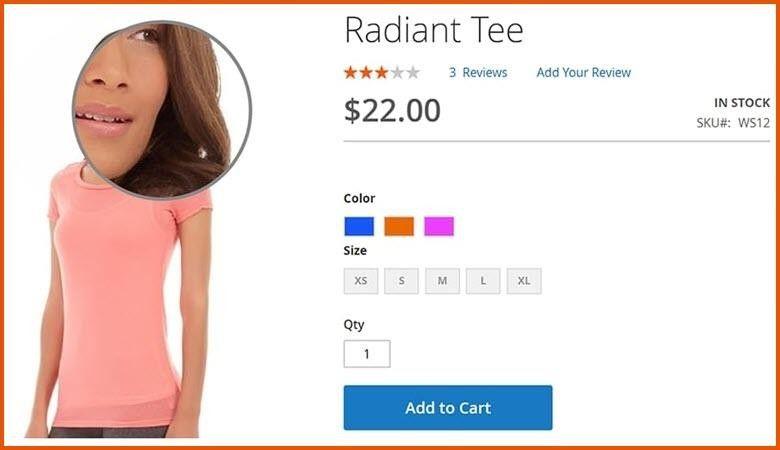
- Round
- Rectangle
- Lens Size: Choose the size of the lens:
- 50
- 75
- 100
- 125
- 150
How To Add/Edit Rules To Enable Image Zoom Option?
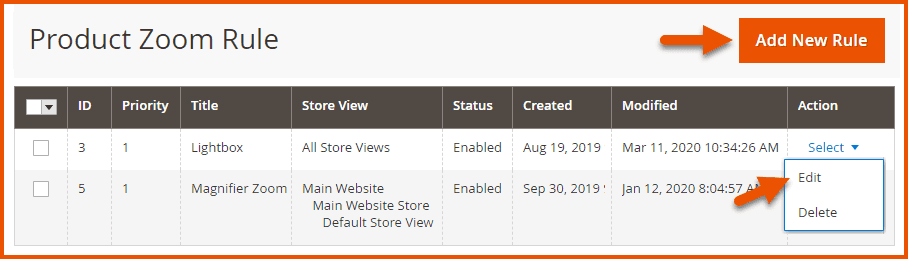
At the back end, go to FME EXTENSIONS > Manage Rules. Here you will find a grid will all the previously created rules. Click on the Edit button or click on the Add New Rule button to continue.
Here you will have to provide the following data:
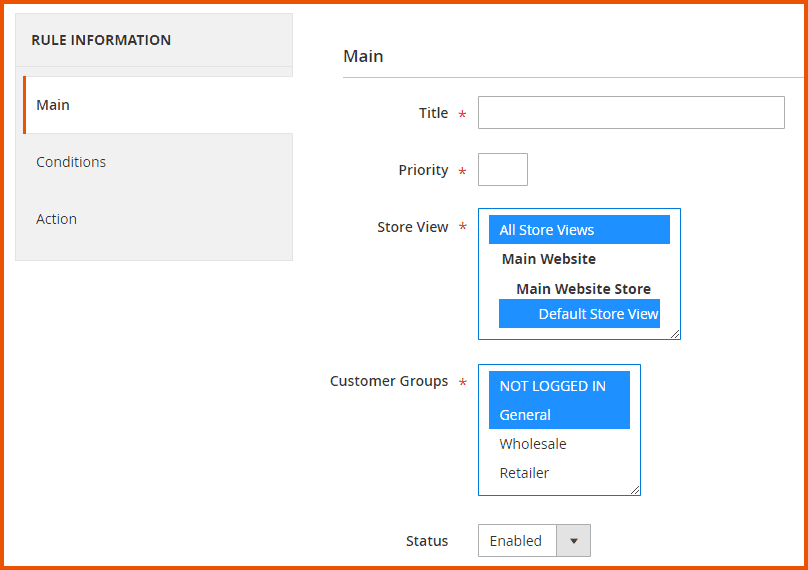
Rule Information > Main
- Title: Enter a title for the new rule
- Priority: Specify the priority of the rule
- Store View: Select the store views on which you want to restrict the image zoom option
- Customer Groups: Select the customer groups on which you want to restrict the image zoom option
- Status: Option to Enable/Disable the rule
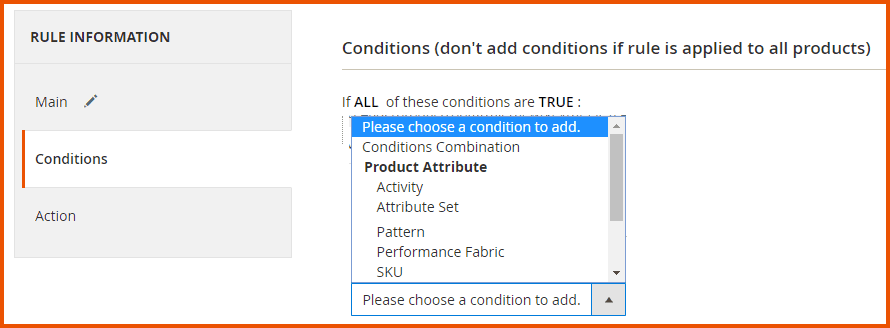
Rule Information > Conditions
Conditions (don't add conditions if the rule is applied to all products)
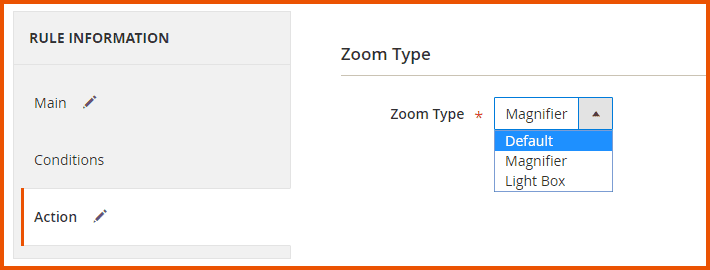
Rule Information > Action
- Zoom Type: Choose the type of zoom:
- Default
- Magnifier
- Light Box
Frontend
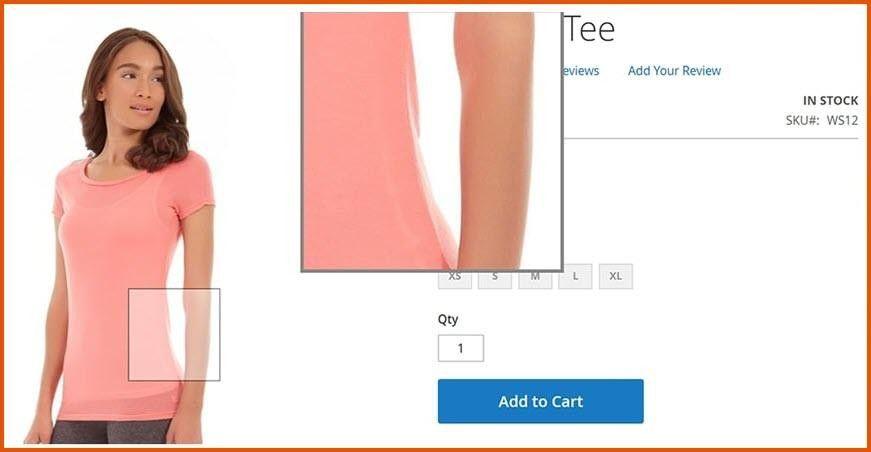
Outside Zoom
Lens Zoom
Tint Zoom
Lightbox
GraphQL APIs
Queries
1. Get All Product Zoom Rules
query GetProductZoomRules {
    getProductZoomRules {
        conditions_serialized
        configuration
        creation_time
        customer_groups
        is_active
        priority
        rule_id
        rule_type
        stores
        title
        types
        update_time
        url_serialized
    }
}
2. Get Rule by ID
query GetProductZoomRule {
    getProductZoomRule(rule_id: 1) {
        conditions_serialized
        configuration
        creation_time
        customer_groups
        is_active
        priority
        rule_id
        rule_type
        stores
        title
        types
        update_time
        url_serialized
    }
}
Mutations
1. Create Rule
mutation CreateProductZoomRule {
    createProductZoomRule(
        title: "test"
        priority: 1
        rule_type: 1
        is_active: true
        customer_groups: [0, 1]
        stores: [0]
        types: [1]
    ) {
        conditions_serialized
        creation_time
        customer_groups
        is_active
        priority
        rule_id
        rule_type
        stores
        title
        types
        update_time
        url_serialized
    }
}
2. Update Rule
mutation UpdateProductZoomRule {
    updateProductZoomRule(
        rule_id: 2
        title: "far"
        priority: 3
        rule_type: 2
        is_active: false
    ) {
        conditions_serialized
        creation_time
        customer_groups
        is_active
        priority
        rule_id
        rule_type
        stores
        title
        types
        update_time
        url_serialized
    }
}
3. Delete Rule
mutation DeleteProductZoomRule {
    deleteProductZoomRule(rule_id: 4)
}
