Magento 2 GDPR Extension - User Guide
Intended Audience
This document is designed for managers, supervisors, and other users of the Ultimate GDPR Compliance Extension for Magento 2.
It provides step-by-step instructions to help you install, configure, and manage the extension effectively.
⚠️ Important:
- This extension only works on Magento 2.
- Always back up your files and database before installing any extension.
- If you need assistance with installation, our support team can install it for you. Simply provide your order ID through our support page.
Once the extension is installed, use this guide to understand its full functionality. For further assistance, feel free to contact us via our website.
After installing the extension:
- Upgrade the setup.
- Deploy static content.
- Log in to the Admin Panel.
- Flush the Magento cache storage.
You can now configure the extension.
How to Configure the Extension
Go to: FME Extensions > Configurations.
Here you’ll find the following settings:
General
- Enabled: Enable or disable the extension.
- My Account Tab Title: Enter a custom title for the GDPR tab under “My Account” (e.g., GDPR Information).
- Message on Submitting a Request: Add a success message displayed when a customer submits a GDPR request.
- Heading on Registration Page: Add a custom heading for the registration page (e.g., Confirmation).
Export Data
- Allow: Allow or disallow customers to export their data.
- Content: Enter a custom message to display during the export process.
Email Configuration
- Enable Admin Emails: Notify the admin when a customer submits a GDPR request.
- Admin Email Address: Enter the email address where notifications will be sent.
- Requests Email Template: Select the email template for admin notifications.
- Send Email to Customer After Request Completion: Enable or disable sending confirmation emails to customers.
- Customer Response Email Template: Select the template for customer replies.
- Enable DPO Contact Form: Enable or disable the Data Protection Officer (DPO) contact form.
- DPO Email Address: Enter the DPO’s email address.
- Link Label: Enter a custom label for the DPO contact link.
- Page Title: Enter a custom title for the DPO form page.
- DPO Form Content: Add content to display in the DPO form.
- DPO Email Template: Select an email template for DPO messages.
Cookie Configurations
- Enabled: Enable or disable cookie consent.
- Content: Add custom text for the cookie usage policy.
- Header: Enter a header/title for the cookie policy.
- Cookie Lifetime: Define cookie lifetime (default: 3600).
- Cookie Path: Specify the cookie storage path.
- Cookie Domain: Enter the cookie domain.
- Cookie Message Position: Choose where the cookie message appears:
- Accept Button Title: Customize the “Accept” button text.
- More Button Title: Customize the “More” button text.
- More Button Link: Add a link to a page with more details (e.g., privacy policy).
- Background Color: Choose the background color.
- Text Color: Choose the text color.
- Button Background Color: Choose the button background color.
- Button Text Color: Choose the button text color.
Newsletter Configurations
- Allow Unsubscription: Allow or disallow customers to unsubscribe from newsletters.
- Unsubscription Checkbox Label: Enter a custom label for the unsubscription checkbox.
Privacy Configurations
- Enable Privacy Check with Subscription: Enable or disable a privacy checkbox for newsletter subscriptions.
- Privacy Checkbox Label: Enter a custom label for the privacy checkbox.
- Set Checkbox Mandatory on Registration: Add a mandatory or optional privacy checkbox to the registration form, ensuring customers acknowledge the policy before creating an account.
Agreement Configurations
- Enable Agreement Check: Enable or disable agreement confirmation.
- Agreement Checkbox Label: Enter a custom label for the agreement checkbox.
- Set Checkbox Mandatory on Registration: Add a mandatory or optional agreement checkbox to the registration form.
Account Configurations
- Allow Delete Account Feature: Allow or disallow customers to delete their accounts.
- Checkbox Label: Enter a custom label for the delete account checkbox.
Orders Configurations
- Allow Customers to Delete Order Details: Allow or disallow customers to delete their order details.
- Enable Cron to Replace Order Details: Enable or disable automated replacement of customer order details.
- Allowed Statuses: Select order statuses for which details can be removed.
- Checkbox Label: Enter a custom label for the checkbox.
- Prefix, First Name, Middle Name, Last Name, Suffix: Define replacement values for customer names.
- Email, VAT, Company, Street, City, Country, Region/State, Postcode, Telephone: Define replacement values for customer details.
How to Manage GDPR Requests
Go to: FME Extensions > GDPR Requests.
Here you’ll find a grid of all customer “Forget Me” requests. You can take the following actions:
- Delete Requests, Accounts & Order Details: Deletes both the customer account and the associated order details. The record is also removed from the grid.
- Mark On-Hold: Marks the request status as On Hold (only in the request grid, does not affect the real order).
- Process: Marks the request status as Processed (only in the request grid, does not affect the real order).
- Process Unsubscribe Only: Unsubscribes customers who have requested unsubscription.
- Process Remove Order Details Only: Removes order details only while keeping the customer account active.
- Process Delete Accounts Only: Deletes the customer account. The request stays in the grid, but the customer will no longer be able to log in.
- Process All Requests: Deletes the customer account, associated order details, and unsubscribes the customer who have opted to delete these details.
My Account Section
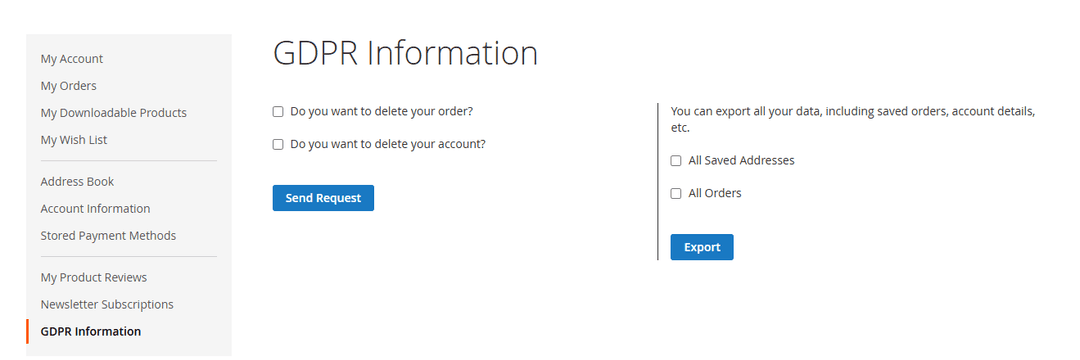
On the frontend, customers will see a GDPR Information tab under My Account.
From here, they can:
- Submit “Forget Me” requests.
- Export their data in PDF format.
Frontend Views
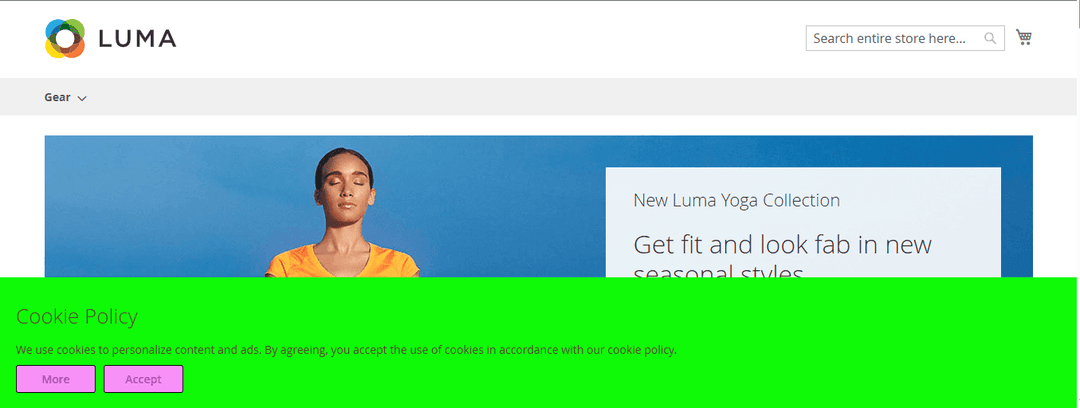
Cookie Consent Banner – Display cookie usage consent to visitors.
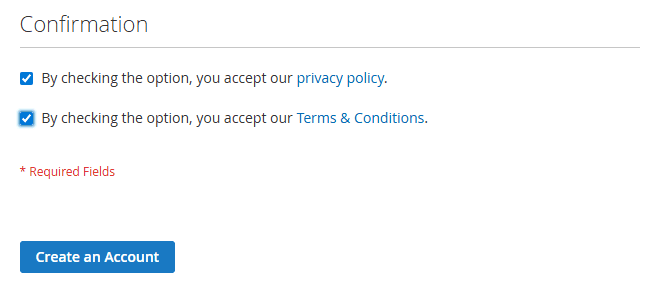
User Consent on Privacy Policy, Terms & Conditions – Collect user agreements during registration or other processes.
GraphQL APIs
Queries
Get Customer Request
query Customer {
    customer {
        gdpr {
            account
            created_at
            done_account
            done_orders
            done_unsub
            gdpr_id
            orders
            status
            unsubscribe
            updated_at
        }
        email
        firstname
        lastname
    }
}
Mutations
mutation RequestGdpr {
    requestGdpr(input: { account: false, orders: false, unsubscribe: false }) {
        message
        success
    }
}
Disclaimer
- Always back up your server files and database before installing this module.
- We are not responsible for any adverse effects during installation.
- It is recommended to first install and test the extension on a staging/test server before deploying it on a live site.
