Magento 2 Custom Tabs Extension - User Guide
General Configurations
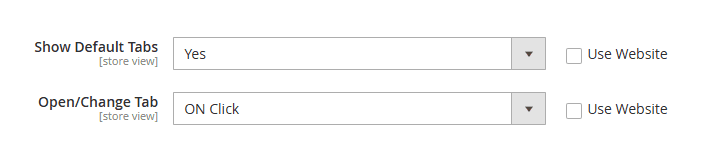
At the backend, go to FME EXTENSIONS > Configurations. Here you can find the extension configurations.
-
Show Default Tabs: Options to show default tabs
-
Open / Change Tabs: Select whether you want the tabs to open on click or hover.
How to Add New Custom Tab?
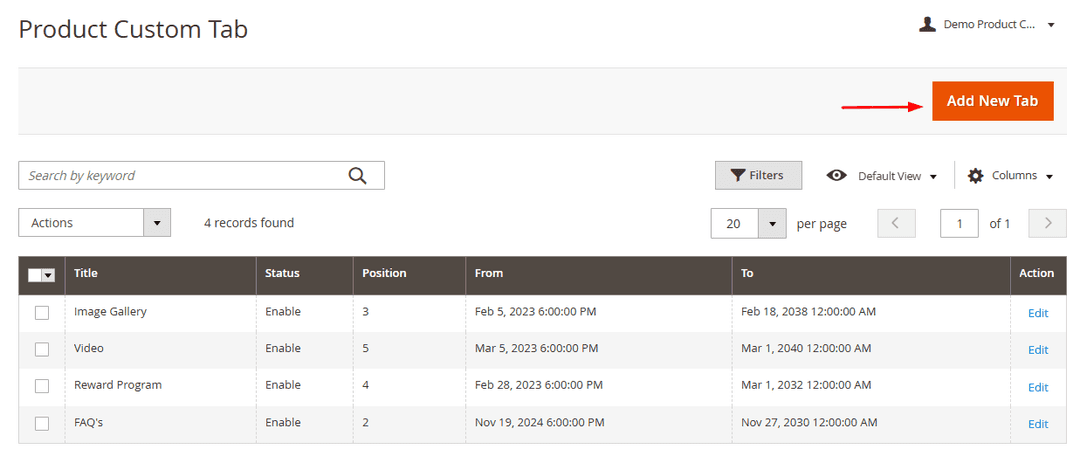
At the back end, go to FME EXTENSIONS > Manage Product Tabs. Here you will find the list of tabs and you can create new ones as well by clicking on the Add New Tab button at the right top.
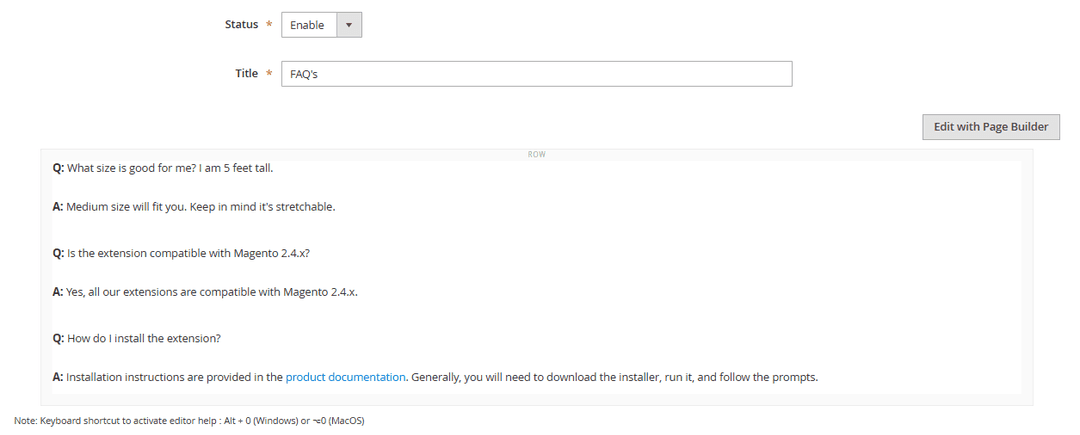
- Title: Allows writing the title of the tab.
- Content: Provides options to write the content of the tab, with multiple formatting options.
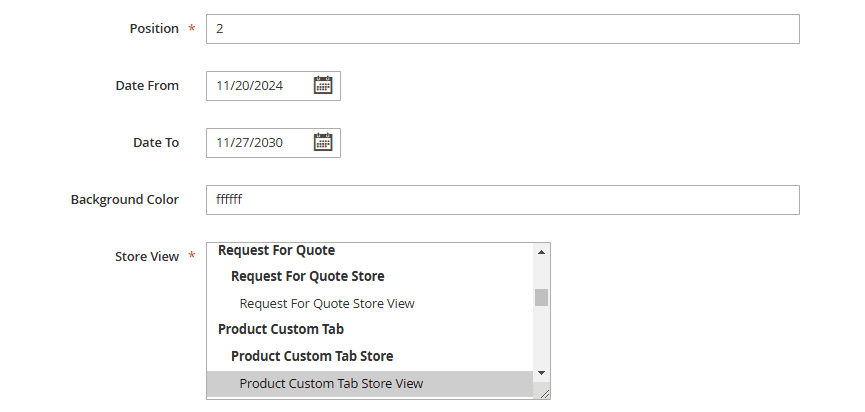
- Position: Enables setting the sort order of the tab.
- Date From: Sets the start date for enabling the product tab.
- Date To: Sets the end date to disable the tab from the page.
- Background Color: Lets you set the background color of the tab.
- Store View: Allows selection of store views where the tab should be displayed.
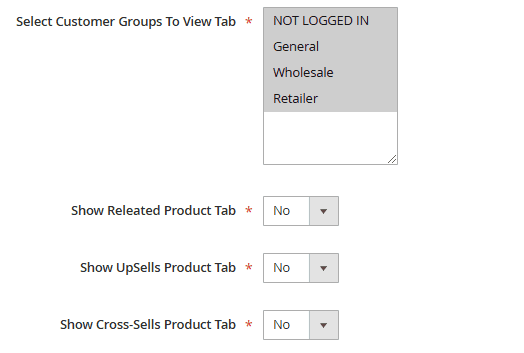
- Select Customer Groups to View Tab: Enables choosing customer groups that can view the tab.
- Show Related Product Tabs: Option to show or hide related products in the custom tab.
- Show Upsells Product Tabs: Option to show or hide upsell products in the custom tab.
- Show Cross-Sells Product Tabs: Option to show or hide cross-sell products in the custom tab.
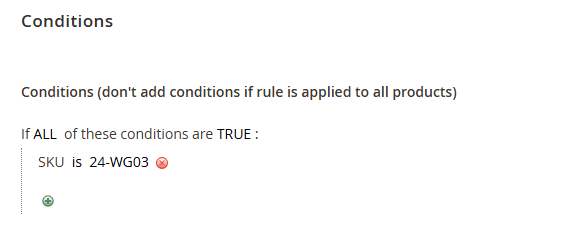
Conditions
Apply conditions if you want to enable the custom tab for specific products. If no condition is set, the tab will be enabled for all products.
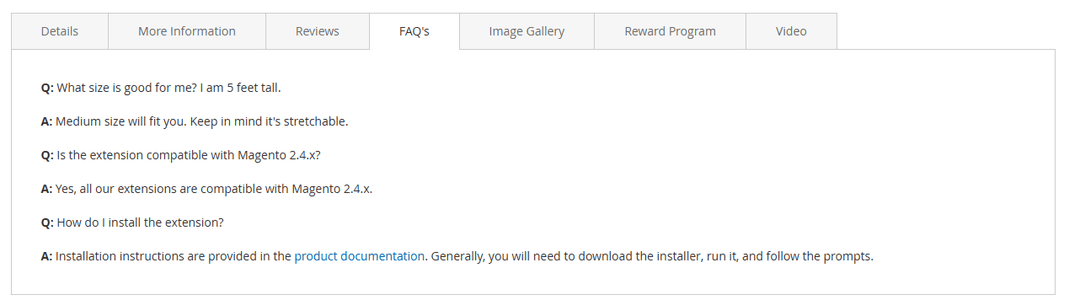
Frontend
GraphQL APIs
This GraphQL query retrieves custom product tabs for a specific SKU (24-MB01). It fetches tab details including title, content, position, styling, and related product links. Useful for displaying dynamic tab data on the product detail page in a headless frontend.
Query
query GetTabs {
 getCustomTabsByProductSku(sku: "24-MB01") {
tab_id
title
content
embedded_code
position
bgcolor
releatedproduct
upsellproduct
crosssellproduct
attributes
 }
}
