Magento 2 Custom Cart & Checkout Messages - User Guide
General Configurations
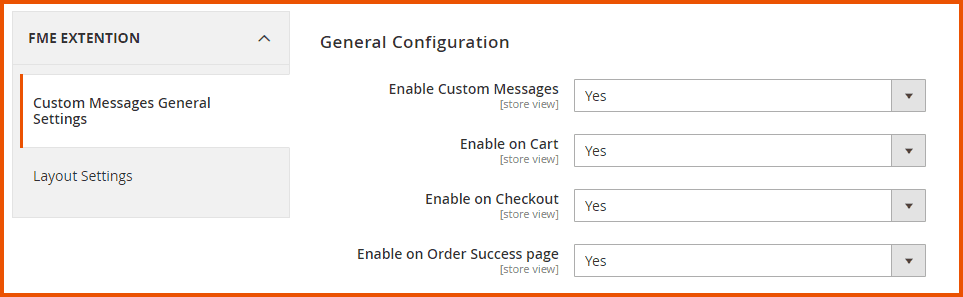
At the backend, go to FME EXTENSIONS > Configurations. Here you can find the extension configurations.
- Enable Custom Messages: Select ‘Yes’ or ‘No’ to Enable/Disable the custom messages
- Enable on Cart: Select ‘Yes’ or ‘No’ to Enable/Disable the custom messages on the cart page
- Enable on Checkout: Select ‘Yes’ or ‘No’ to Enable/Disable the custom messages on the checkout page
- Enable on Order Success Page: Select ‘Yes’ or ‘No’ to Enable/Disable the custom messages on the order success page
How to Configure Layout Settings?
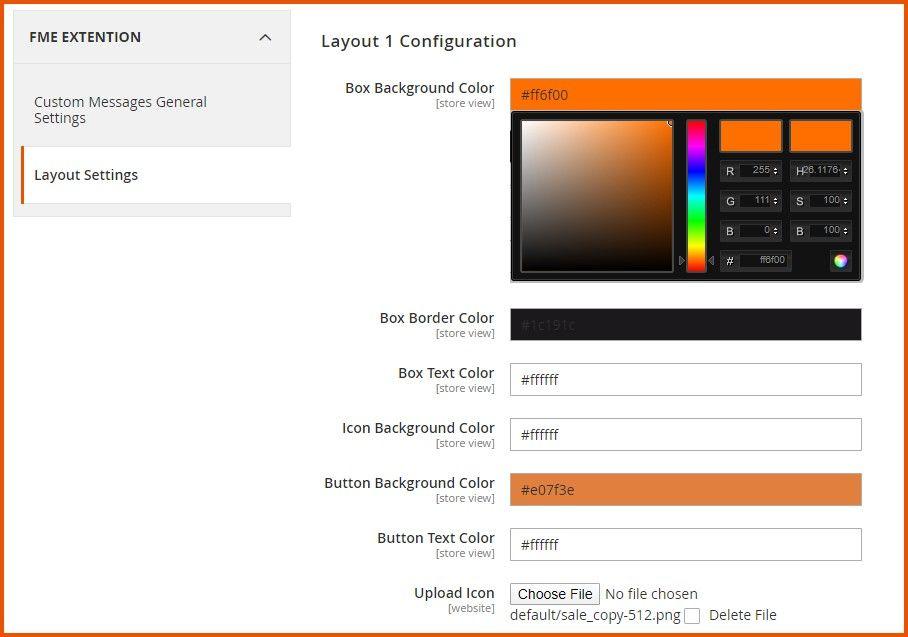
At the back end, go to FME EXTENSIONS > Layout Settings. Here you can find the following settings:
Layout 1 Configuration
You can set the following colors for Layout 1 and other layouts.
- Box Background Color
- Box Border Color
- Box Text Color
- Icon Background Color
- Button Background Color
- Button Text Color
Also, upload an icon for the first layout.
How to Create Custom Messages?
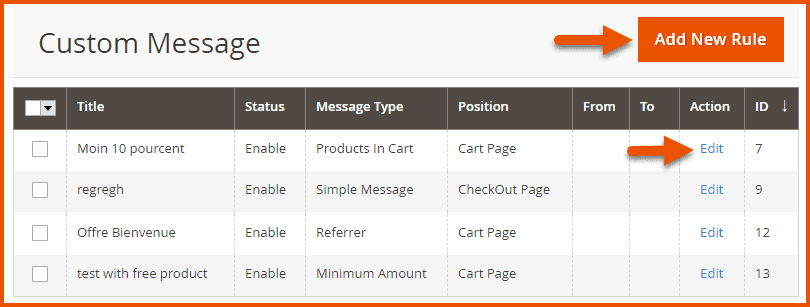
At the back end, go to FME EXTENSIONS > Manage Custom Messages. Here you will find the list of all the custom messages created before. Click on the Edit button or click on the Add New Rule button to continue.
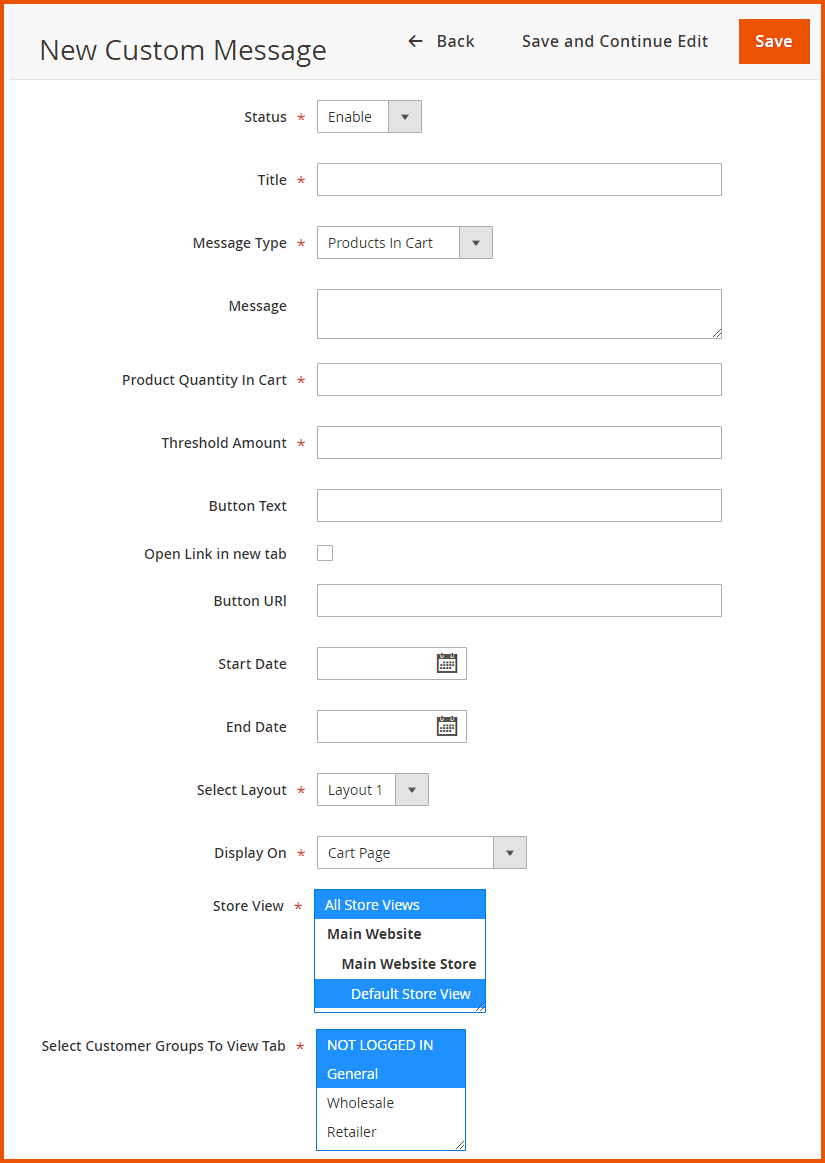
Here you will find the following configurations.
-
Status: Option to Enable/Disable the custom message
-
Title: Enter a title for the custom message
-
Message Type: Specify the type of the custom message:
- Products in Cart
- Categories in Cart
- Simple Message
- Minimum Amount
- Deadline
- Referrer
-
Message: Enter the custom message which will display on the frontend
-
Product Quantity in Cart: Enter the quantity of the product in the cart
-
Threshold Amount: Enter the threshold amount
-
Button Text: Enter a text for Call to Action (CTA) button
-
Open Link in New Tab: Check the box to make the custom link open in a new tab
-
Button URL: Provide a custom URL for Call to Action button
-
Start Date: Choose a start date to schedule the display of the custom message
-
End Date: Choose an end date to hide the custom message
-
Select Layout: Choose a layout as per the needs of your eCommerce website design:
-
Display On: Choose an option to display the custom message on.
-
Store View: Select the store views to restrict the display of the custom message
-
Select Customer Groups To View Tab: Select the customer groups to restrict the display of the custom message.
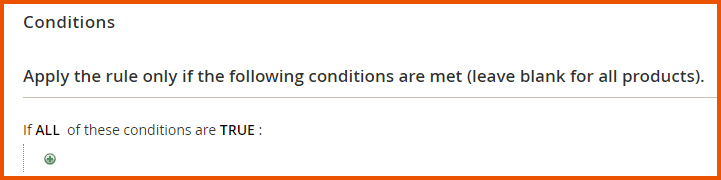
Conditions
Apply the rule only if the following conditions are met (leave blank for all products).
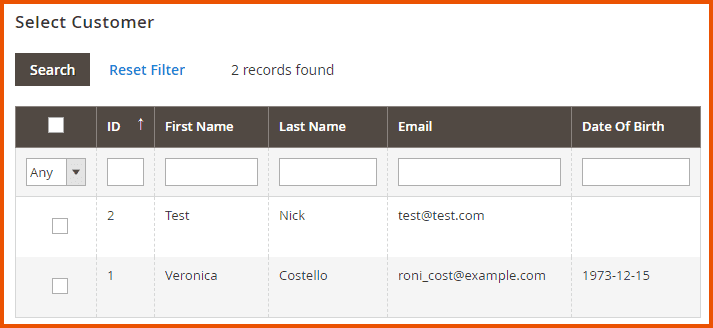
Select Customer(s)
Select the customer/customers on whom the rule will be applied
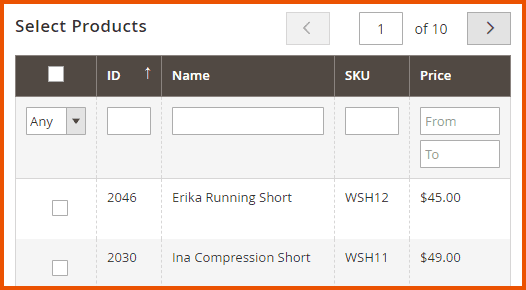
Select Product(s)
Select any product/products on whom the rule will be applied when added to the cart.
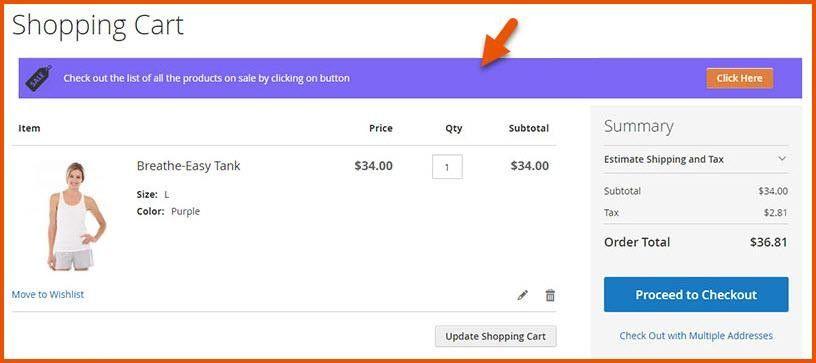
Frontend
Custom Message with Link Button on Cart Page
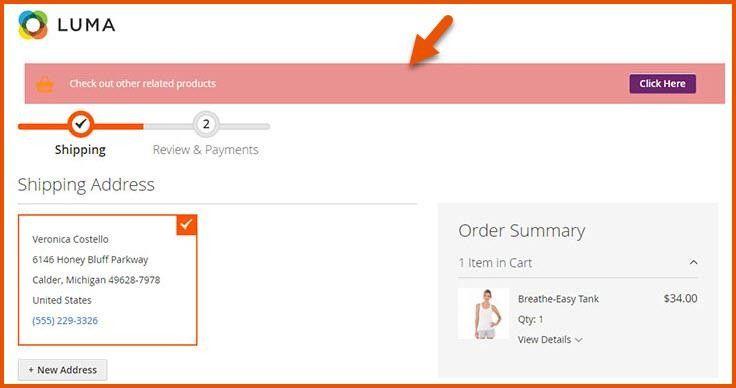
Custom Message with Link Button on Checkout Page
GraphQL APIs
1. Update Custom Messages Rule
mutation {
  updateCustomMessages(
    input: {
      id: 1
      title: "Updated Free Shipping Promotion"
      mtype: 0
      message: "Updated: To benefit from free shipping, add <strong>{remaining_quantity}</strong> quantity more of <strong>{products}</strong>!"
      buttontext: "Updated Buy Now"
      buttonurl: "https://example.com/updated-shop"
      oln: false
      status: true
      customergroup_id: ["1", "2", "3"]
      store_id: ["1"]
    }
  ) {
    id
    message
    success
  }
}
2. Insert Custom Messages Rule Data
mutation {
  insertCustomMessages(
    input: {
      title: "Free Shipping Promotion"
      mtype: 0
      message: "To benefit from free shipping, add <strong>{remaining_quantity}</strong> quantity more of <strong>{products}</strong>!"
      buttontext: "Buy Now Button"
      buttonurl: "https://example.com/shop"
      oln: true
      referrer: null
      customlayout: 0
      mposition: 1
      requiredquantity: 5
      thresholdamount: null
      minimumorderamount: 0.0
      starthour: ""
      endhour: ""
      startdate: "2025-11-17"
      enddate: "2025-11-27"
      conditions_serialized: "{\"type\":\"FME\\\\CustomMessages\\\\Model\\\\CustomMessages\\\\Condition\\\\Combine\",\"attribute\":null,\"operator\":null,\"value\":\"1\",\"is_value_processed\":null,\"aggregator\":\"all\",\"conditions\":[{\"type\":\"FME\\\\CustomMessages\\\\Model\\\\CustomMessages\\\\Condition\\\\Product\",\"attribute\":\"sku\",\"operator\":\"()\",\"value\":\"24-MB04,24-MB03,24-MB05,24-MB06,24-MB02,24-UB02\",\"is_value_processed\":false}]}"
      status: true
      customergroup_id: ["0", "1", "2", "3"]
      store_id: ["0"]
      cat_id: []
      day: []
      pro_id: []
      customer_id: []
    }
  ) {
    id
    message
    success
  }
}
3. Get Custom Messages Rule Data
query {
  customMessagesGraphQl(id: 1) {
    id
    title
    mtype
    message
    buttontext
    buttonurl
    oln
    referrer
    customlayout
    mposition
    requiredquantity
    thresholdamount
    minimumorderamount
    starthour
    endhour
    startdate
    enddate
    conditions_serialized
    status
    created_at
    updated_at
    customergroup_id
    store_id
    cat_id
    day
    pro_id
    customer_id
  }
}
4. Delete Custom Messages Rule
query{
deleteCustomMessages(id: 2) {
  message
}
}
