Magento 2 Canonical URL Extension - User Guide
At the backend, go to FME EXTENSIONS > Configurations. Here you can find the extension configurations.
General Configurations
-
Enable Module: This will Enable/Disable canonical meta tag to any pages. (Hint: Select ‘Yes’ to add a canonical meta tag in meta header for any targeted page)
-
Exclude Canonical Meta Tag on These Pages: Specify the pages to exclude or ignore canonical meta tag i.e.
- To exclude canonical meta tag on product pages, use: 'catalog_product_view'
- To exclude canonical meta tag on CMS home page, use: 'cms_index_index'
- To exclude canonical meta tag on category pages, use: 'catalog_category_view'
-
Canonical Meta Tag For Store URL (Cross Domain): Choose the main domain for the pages from other domains that have identical content.
- If “Default Store URL” all stores have their canonical Meta tags e.g. we have three stores. Mystore.com → mystore.com/product, Frenchstore.com → frenchstore.com/product, Germanstore.com → germanstore.com/product. So, all three stores have their canonical Meta tags.
- If “French Store View” (you have your list of stores listed in the dropdown) then all the stores have canonical meta tag with domain frenchstore.com/product/---
-
Canonical Meta Tag For Custom URL (Cross Domain): Specify the domain for pages from other domains that have identical content. This will add a custom URL in the canonical meta tag for the selected store view. For example, if we select 'French Store View' in the 'Canonical Meta Tag for Store URL' configuration, a custom URL will be added to the canonical meta tag for pages in the French store view. Suppose the custom URL is http://mystore.com; then for a product URL like Frenchstore.com/product/, the canonical tag will point to mystore.com/product/.
-
Trailing Slash For Canonical Meta Tag: Choose to end the URLs with a trailing slash. Add or Crop trailing slash to the pages without suffix .html or .htm
(Note: trailing slash can be added to the pages without suffix .html or .htm)

Category Canonical Tags
- Category Canonical Enabled: Enable/Disable canonical meta tag to any category
- Add Canonical Meta Tag to Catalog Pagination Pages: If "Yes" canonical meta tag will be added on category or product listings pagination page e.g. pages ending with: ?p=1, ?p=2,
?p=3 etc. E.g. Category page like
http://mag2-seo.myextensions.net/canonicalurls/men/tops-men/jackets-men.html?p=2
- If “Add canonical meta tag to catalog pagination pages” is “Yes”, then the canonical meta tag will be like
- If “No”, canonical meta tag will be like
- Add Canonical Meta Tag to Catalog Layered Navigation: Choose to add the canonical meta tag to:
- Current Category
- Filtered Page or
- Disable this feature
a) If “Yes”, for the Filtered Page” canonical Meta tag will be added to the filtered category. E.g. We have a filtered category like:
- http://mag2- seo.myextensions.net/canonicalurls/men/tops- men.html?cat=14&style_general=120 Then the canonical meta tag will be:
<link rel="canonical" href="http://mag2- seo.myextensions.net/canonicalurls/men/tops- men/jackets- men.html?style_general=120" />
b) If “Yes”, for the Current Category” canonical Meta tag will be added to the current category. E.g. We have a category page like:
- http://mag2- seo.myextensions.net/canonicalurls/men/tops- men.html?cat=14&style_general=120 Then the canonical Meta tag will be:
<link rel="canonical"href="http://mag2seo.myextensions.net/canonicalurls/men/tops- men.html"/>
- Add rel=”next” and rel=”prev” to Catalog Pagination Pages: Use the rel=next/prev tag to inform Google, where exactly the 1st and the last pages are and treat these pages as a logical sequence.

Product Canonical Tags
- Product Canonical Enabled: Enable/Disable canonical meta tag to any product
- Include Category Path: Select Yes/No to include/exclude category path to any product canonical meta tag
- Category Path Structure: If you select ‘Yes’ in the above field, only then this field will show where you have to specify the structure of the category path as:
- Include Main Categories Only
- Include Sub-Categories with Main Category

CMS Canonical Tags
- CMS Canonical Enabled: Enable/Disable canonical meta tag to any CMS page

How to Add Canonical Tags to Products?
At the back end, go to Catalog > Products. Here you will find the list of all the store products. Click on Edit button to add a canonical tag to any product.

Here you will have to provide Override Canonical URL & Canonical Primary Category URL.

How to Add Canonical Tags to Category?
At the back end, go to Catalog > Categories. Here you will find the list of all the categories. Select any category and provide Override Canonical URL.

How to Add Canonical Tags to a CMS Page?
At the back end, go to Content > Pages. Here you will find the list of all the CMS pages. Click on Edit button to add a canonical tag to any CMS page.
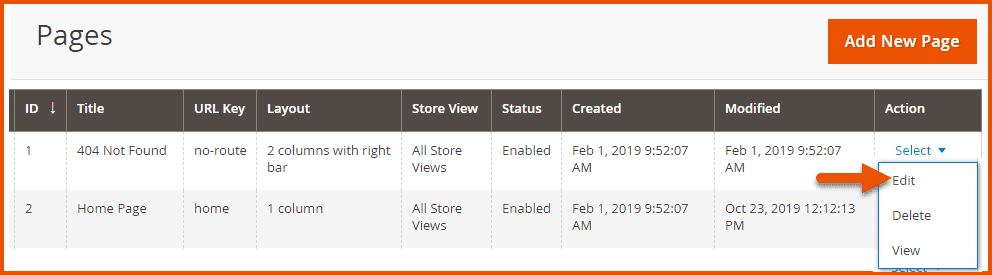
Here you will have to provide Override Canonical.

